
Create a new assignment
Create an assignment with course, batch, subject, submission type, due date, marks or grades, and publish it.
Admins, teachers and privileged employees can create new assignments.
Steps
-
Go to Menu → Academics → Assignment to open the All assignments page.
-
At the top left, click Create new assignment.

2Video (Arabic): The Create new assignment button Watch on YouTube -
In the Course field, select the course. The Batch and Subject fields then appear.
-
Select the Batch and Subject. The students taking the subject are listed on the right.
-
If you select Enable comments, any student or teacher can add comments. Comments are public.
-
If you turn on Enable submission, an Online/Offline drop-down appears. If it is turned off, students cannot submit the assignment — they can only view its content.
-
Choose the Assignment type:
- Online — students submit the assignment in myschool.
- Offline — students cannot submit in myschool; instead the teacher marks the assignment as submitted.
-
In the Title field, enter the assignment name.
-
If you select Enable due date, set the due date and choose whether late submissions are allowed. If disabled, no due date is shown on the assignment.
-
Marks/Grade: assignments can be graded with marks or grades (the grading profile comes from Gradebook).
-
Fill in any additional fields defined in the assignment settings.
-
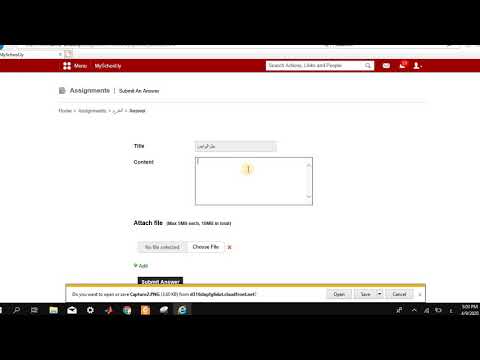
Add the Content. You can attach files — up to 5 MB each and 10 MB in total.
-
Click Draft to save it for later, or Publish. When the assignment is published, students are notified.
Next, read about Assignment logs.
Was this article helpful?
Thanks for your feedback!