
How does an employee create and evaluate an assignment?
Subject teachers create assignments from Academics → Assignment and then accept or reject student answers.
All employees can open the Assignment plugin, but only employees who are assigned to subjects can create assignments.
Note: The administrator account does not have access to the Assignment plugin.
Create an assignment
- Go to Menu → Academics → Assignment to see all assignments.
- Click Create new assignment in the top-right corner.
- Enter the assignment details:
- Title
- Content
- Due date
- Subject
- Students it applies to
- Click Save.
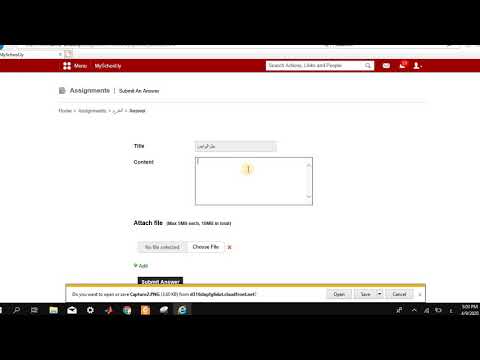
Screenshot — to be added
public/images/articles/faq-assignments-create-evaluate-2.pngEvaluate student answers
After students submit their answers:
Screenshot — to be added
public/images/articles/faq-assignments-create-evaluate-3.png-
Log in as the employee.
-
Go to Menu → Academics → Assignment and select the subject.
-
Click the Answered link to see the students’ replies.
Screenshot — to be addedpublic/images/articles/faq-assignments-create-evaluate-4.png4List of assignment answers -
Click a student’s name to review their answer.
-
Accept or Reject the answer.
Screenshot — to be addedpublic/images/articles/faq-assignments-create-evaluate-5.png5Accepting or rejecting an answer
If you reject an answer, the student must submit it again. An accepted answer needs no further action.
Screenshot — to be added
public/images/articles/faq-assignments-create-evaluate-6.pngWas this article helpful?
Thanks for your feedback!