
How to create an event and view it on the calendar
Create an event for everyone or for selected batches and departments, from Event Creation or directly from the Calendar.
Administrators and privileged employees can create events from the Event Creation module or from the Calendar. An event can be shared with all myschool users or only with selected batches and departments.
Create an event from Event Creation
- At the top of your dashboard, click the module access icon and go to Menu → Collaboration → Event Creation.
- In the Start and End date fields, set when the event takes place.
- In the Title field, enter the event name.
- In the Description field, enter the event details.
- Select Is holiday? if the event is a holiday.
Event for all users
- Select the Event common to all checkbox.
- Click Create event.
- Click Confirm to publish the event.

Event for specific batches or departments
-
Leave Event common to all unselected.
-
Click Create event.
Screenshot — to be addedpublic/images/articles/event-create-calendar-2.png2Event creation form without the common option -
Click Select a batch, choose the batches that should receive the event, and click Save.
Note: Parents/guardians set as the students’ emergency contacts also receive the event details.
-
Click Select department, choose the departments that should receive the event, and click Save.
-
Click Confirm to publish the event.
public/images/articles/event-create-calendar-3.pngPublished events appear in the Events dashlet for all relevant users. If SMS settings are configured, recipients also receive an SMS.
Create an event from the Calendar
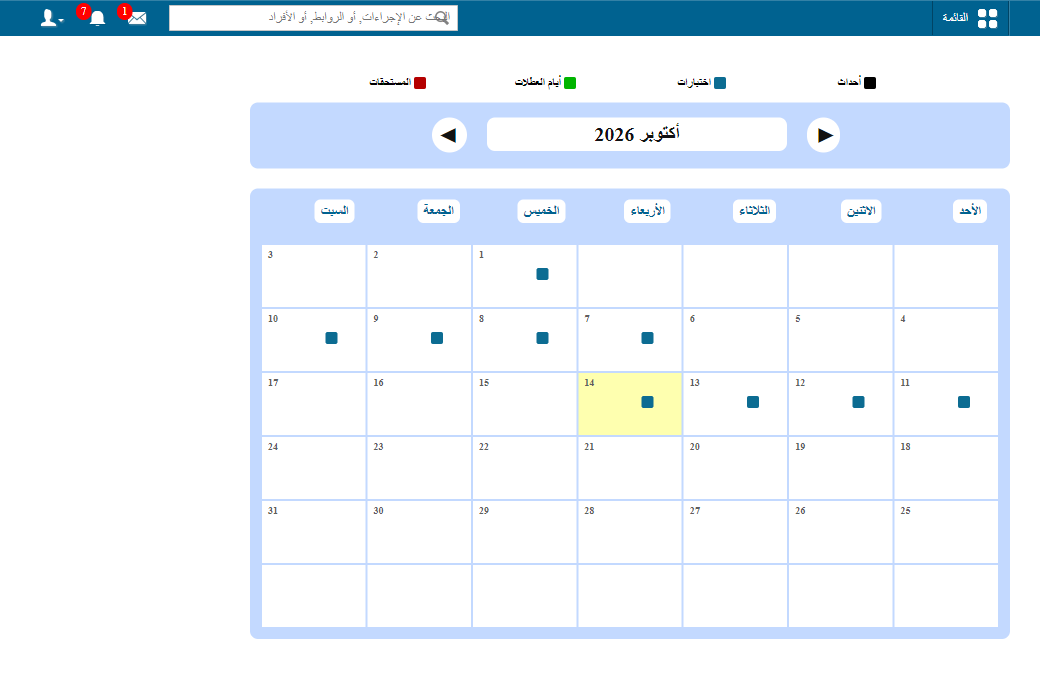
- At the top of the dashboard, click the module access icon and go to Menu → Academics → Calendar.
- Hover over the top-left corner of a date until the Add link appears. Click Add and follow the steps above.
public/images/articles/event-create-calendar-5.pngWas this article helpful?
Thanks for your feedback!