
Can I use a barcode reader with myschool, and how does it work?
Barcode support is built into the Library module: add, issue, renew, search and return books by scanning.
Yes. Barcode support is built into the Library module, so no extra setup is needed. You can use a barcode reader to:
- Add books
- Issue and renew books
- Search for books
- Return books
Note: Make sure your barcode reader is connected to your computer before you start scanning.
Add books by barcode
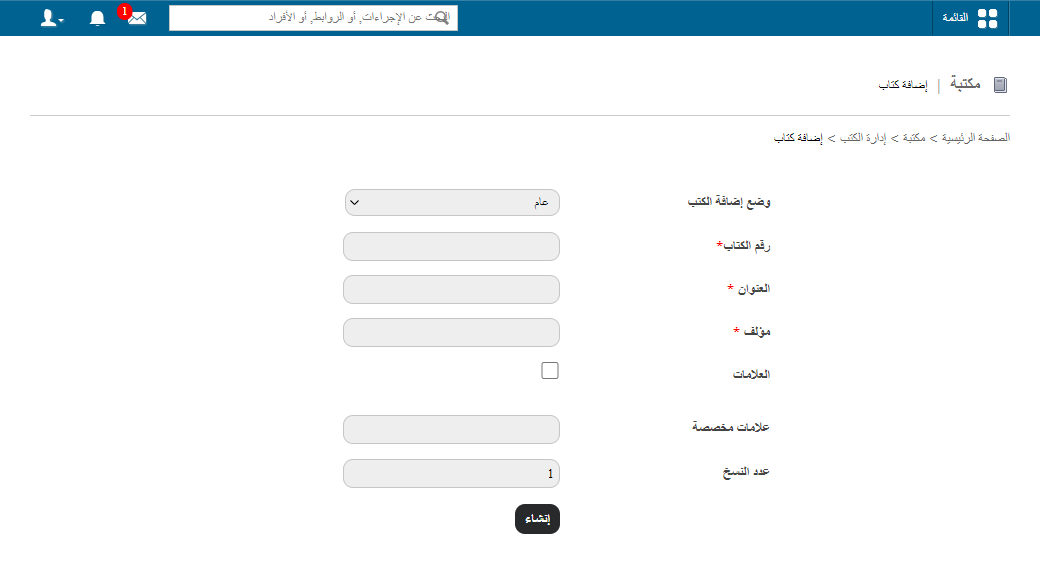
- Go to Menu → Academics → Library → Manage Books.
- Click Add books.
- Select By barcode as the mode.
- Place the cursor in the Barcode field and scan the book’s barcode.
- Enter the remaining details, such as book number, title and author.
- Click Save.
Issue books
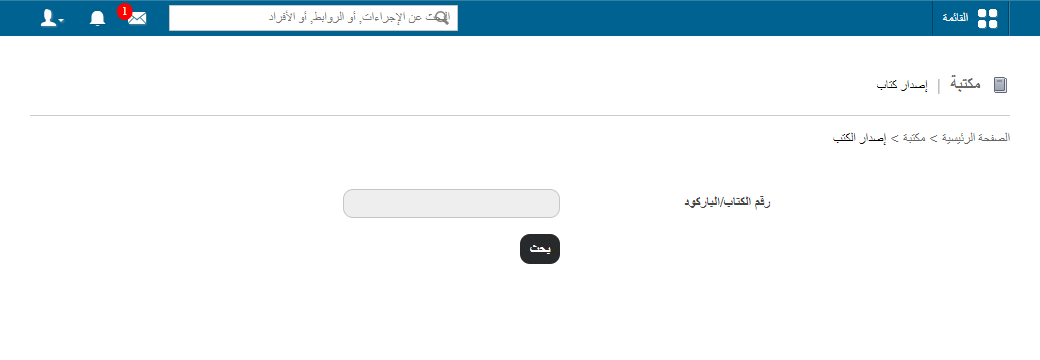
- Open the Issue Books page in the Library module.
- Scan the barcode on the book.
- Click Search and continue issuing the book.
Search books by barcode
- Open the Search Book page.
- Select Barcode as the search mode.
- Scan the barcode and click Search.
Screenshot — to be added
public/images/articles/faq-library-barcode-reader-3.pngWas this article helpful?
Thanks for your feedback!