
How to add a supplier
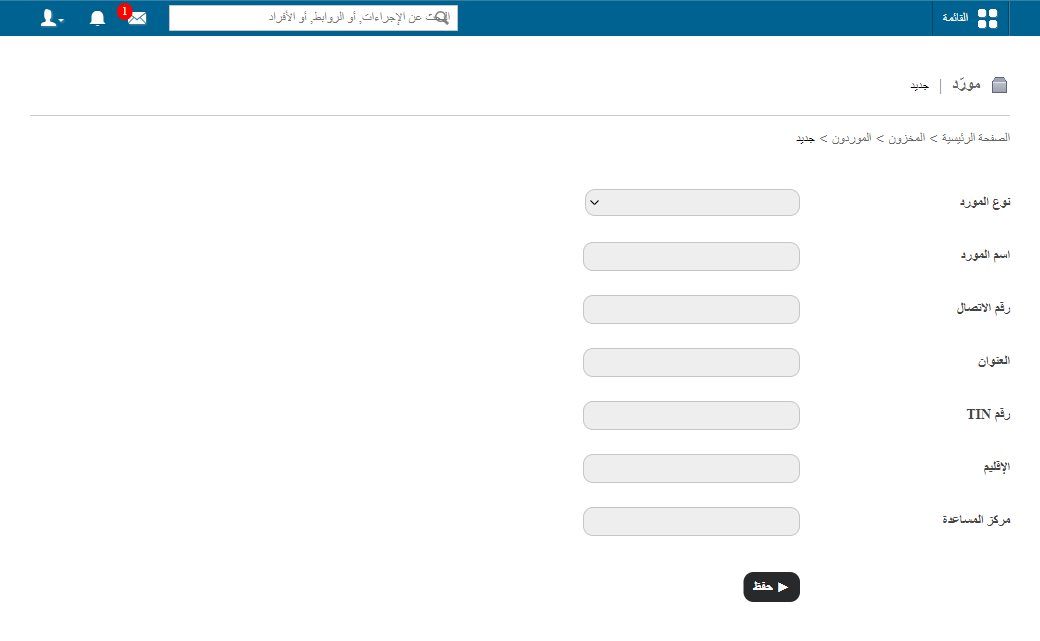
Add suppliers with their type, contact number, address, tax number, region and help desk details.
A supplier is an individual or business that supplies your school with items.
Steps
-
Go to Menu → Administration → Inventory → Supplier.
-
In the top-right corner, click New.
-
Select the supplier type.
Screenshot — to be addedpublic/images/articles/inventory-add-supplier-1.png1Selecting the supplier type -
In the Supplier Name field, enter the supplier’s name.
-
In the Contact No. field, enter the supplier’s contact number.
-
In the Address field, enter the supplier’s address.
-
In the TIN No. field, enter the supplier’s tax identification number.
-
In the Region field, enter the supplier’s region.
-
In the Help Desk field, enter the supplier’s support contact.
-
Click Save.
Related articles
Was this article helpful?
Thanks for your feedback!