
How do I assign a manager to an employee?
Set a reporting manager in the employee profile so the employee can apply for leave and raise indents.
Steps
- At the top of your dashboard, click the module access icon.
- Go to Administration → Human Resource → Employee Search to open the Employee Details page.
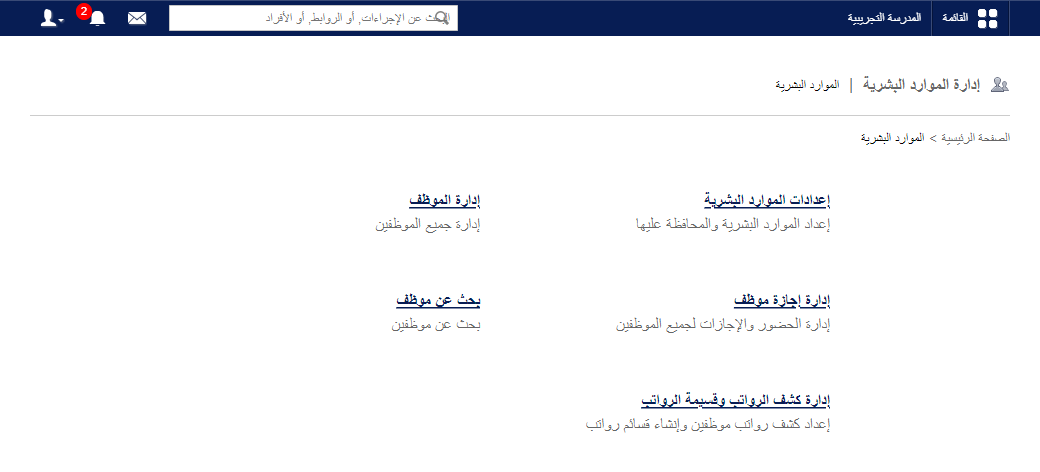
- In the Search field, enter the employee’s first name, last name or employee ID.
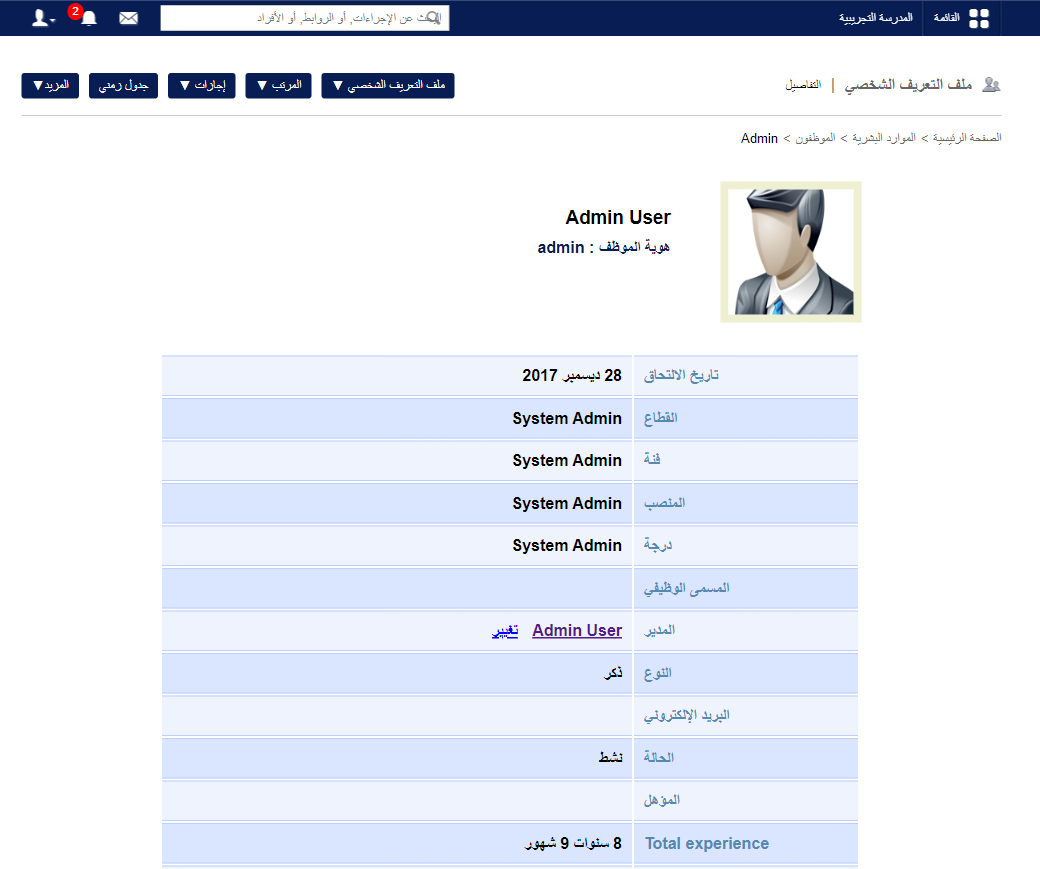
- Click the employee’s name to open their profile.
- Find the Manager label and click Change.
- Search for the manager by first name, last name or employee ID (enter at least three letters) and assign them.
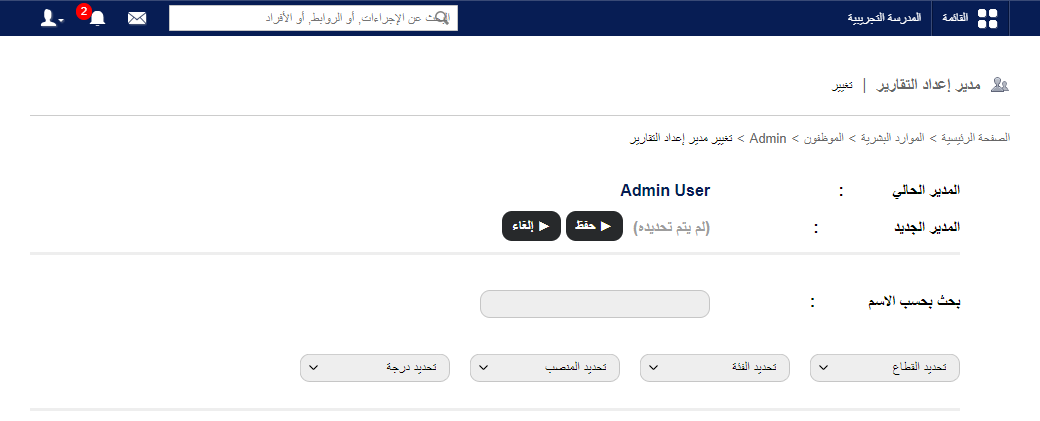
Note: If an employee has no manager assigned, they cannot apply for leave or raise an indent for an item.
Screenshot — to be added
public/images/articles/faq-hr-assign-manager-4.pngWas this article helpful?
Thanks for your feedback!