
How to create a purchase order
Create a purchase order against an indent to buy items from a supplier, with quantities, discount and tax.
A purchase order is created when items are bought from other businesses. A purchase order must be created against a specific indent request.
Steps
-
Go to Menu → Administration → Inventory → Purchase Order to open the Purchase Order page.
-
In the top-right corner, click New.
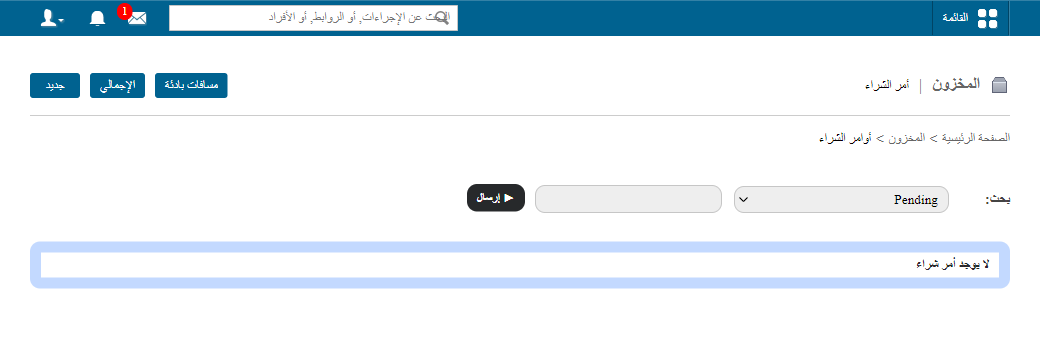
1The New button on the Purchase Order page -
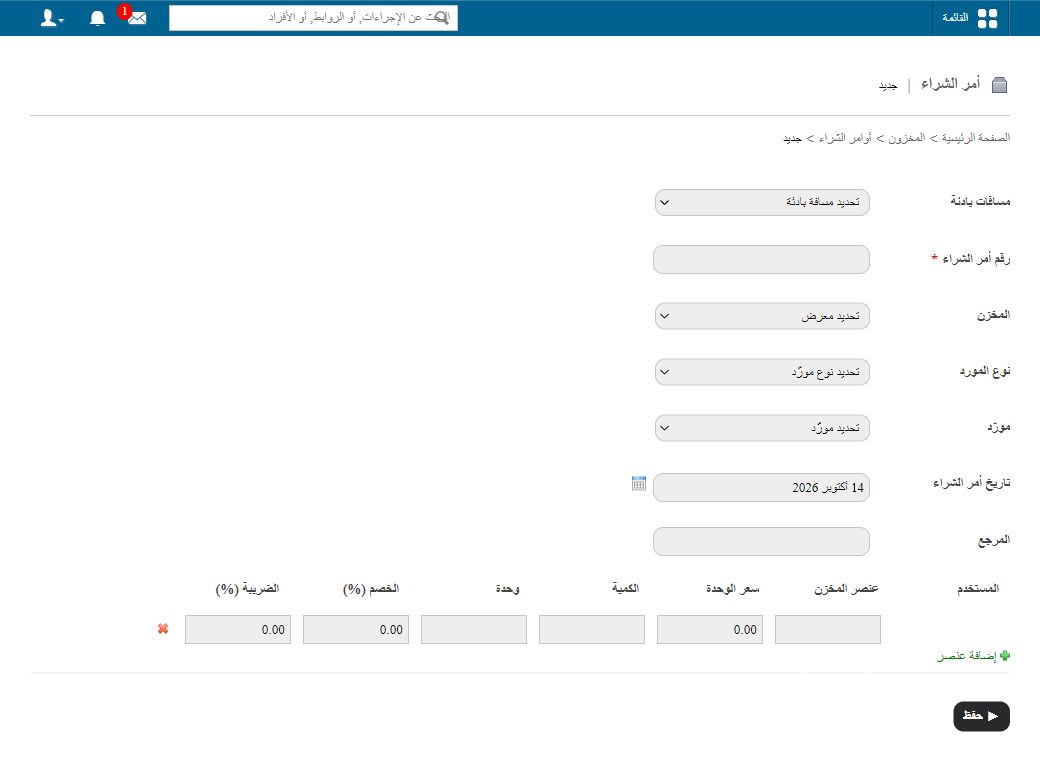
Select the indent number.
-
In the Purchase order No. field, enter the purchase order number.
Note: If you have created purchase orders before, the number increases automatically in sequence.
-
In the Store field, select the store.
-
In the Supplier Type field, select the supplier type.
-
In the Supplier field, select the supplier you are buying the items from.
-
In the PO Date field, select the purchase order date. It can be today, a past date or a future date.
-
In the Reference field, enter a reference ID you can use to search for the purchase order later.
-
In the Store Item field, select the item you are buying. The item’s unit price is displayed.
-
In the Quantity field, enter the quantity to buy.
-
In the Discount field, enter the discount amount to apply to the total.
-
In the Tax (%) field, enter the tax percentage to apply to the total.
-
Click Add item (in green) to buy more items. To remove an item from the purchase order, click the x icon.
-
Click Save.
Related articles
Was this article helpful?
Thanks for your feedback!