
How to edit or delete item details
Edit store items at any time, delete items not yet indented or issued, and export item lists as PDF or CSV.
Item details can be edited at any time. However, an item can only be deleted from a store if it has not yet been indented or issued.
Steps
-
Go to Menu → Administration → Inventory → Store Items.
-
Select a store by name, or search for an item by entering its name. You can also choose Select all to view the items of all stores.
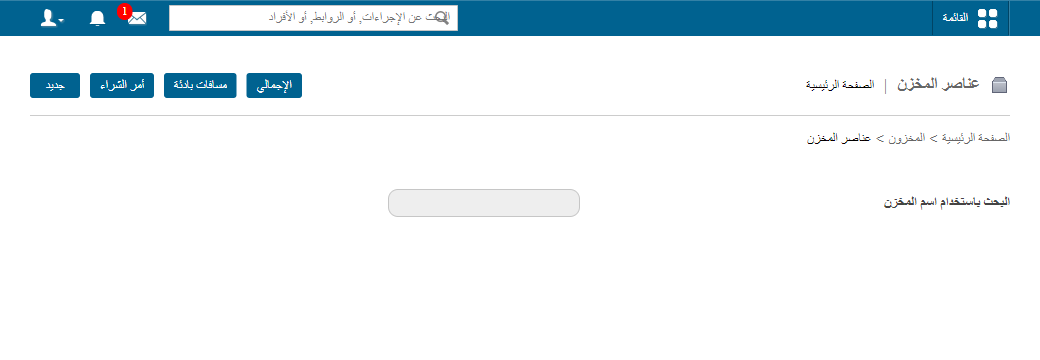
1Selecting a store on the Store Items page -
Click Edit to change an item’s details, or Delete to remove the item.
-
Click PDF Report to download the item list as a PDF, or CSV Export to download it as a CSV file.
Screenshot — to be added
public/images/articles/inventory-edit-delete-store-items-2.pngRelated articles
Was this article helpful?
Thanks for your feedback!