
How to add items to a store
Add items to a store with quantity, unit price, tax and batch number, and mark them as sellable if needed.
A store can contain any number of items. Items can be meant for sale or meant to be issued through indents.
Steps
-
Go to Menu → Administration → Inventory → Store Items.
-
In the top-right corner, click New.
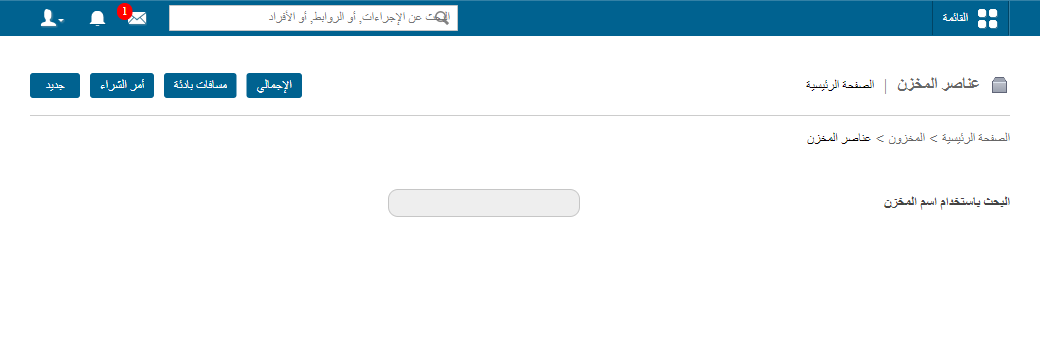
1The New button on the Store Items page -
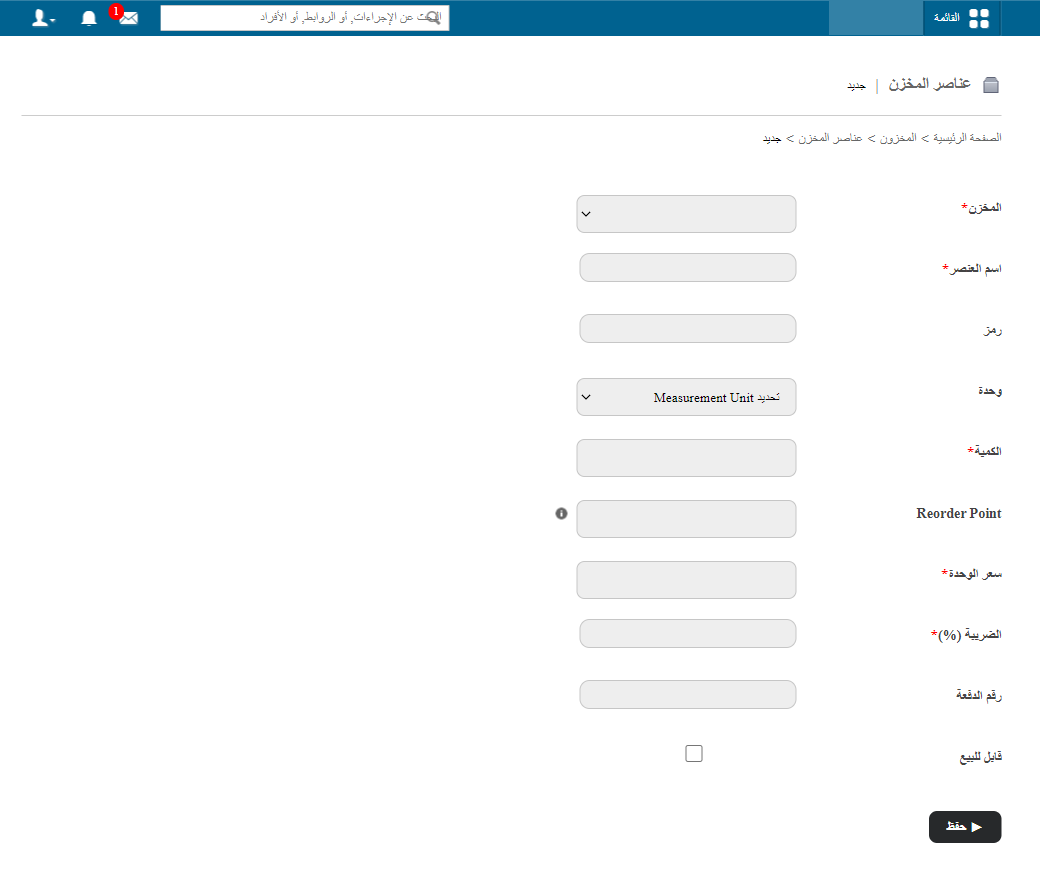
Select a store.
-
In the Item Name field, enter the name of the item.
-
In the Code field, enter an item code.
-
In the Quantity field, enter the quantity available.
-
In the Unit Price field, enter the price of one unit of the item.
-
In the Tax (%) field, enter the tax percentage applied when purchasing the item.
-
In the Batch No. field, enter the item’s batch number.
-
Select the Sellable checkbox if the item can be sold.
-
In the Item Category field, select the item category.
Note: This field is available only when the Sellable checkbox is selected.
-
Click Save.
Related articles
Was this article helpful?
Thanks for your feedback!