
How to set up grading levels
Define the grades and the minimum score for each grade, for all batches or for a specific batch.
A grading level is a grade and the range of marks that corresponds to it. Teachers use grading levels when marking a student’s assessment or exam answer sheet.
Set up grading levels
-
Go to Menu → Academics → Examination → Settings → Set grading levels.
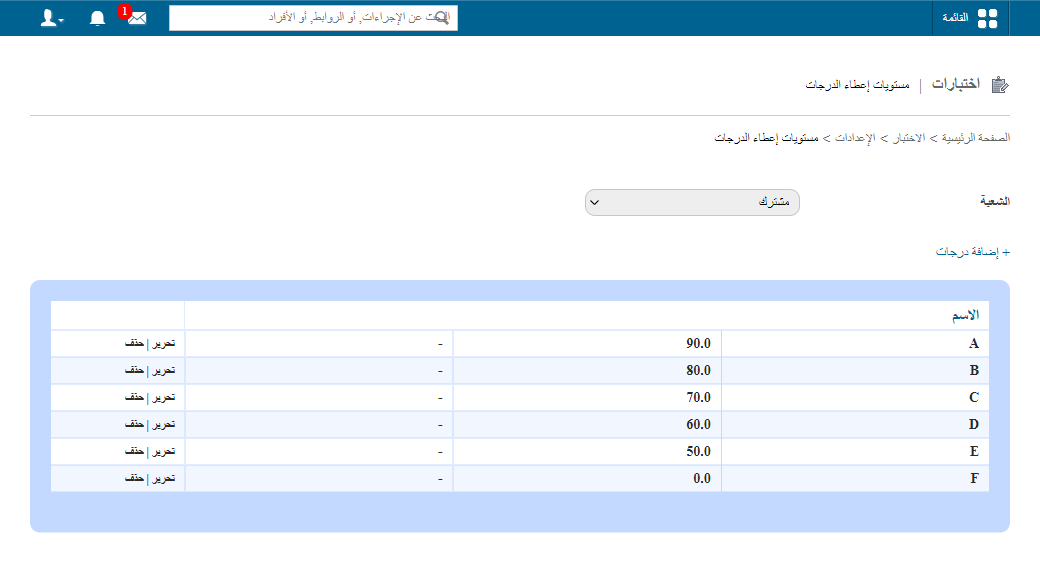
1Grading levels page with the default grading levels -
To set grading levels for a specific batch, select the batch and click Add Grades.
-
In the Name field, enter the name of the grading level.
-
In the Min Score (%) field, enter the minimum percentage a student needs to achieve this grading level.
-
In the Description field, enter any details about the grading level.
-
Click Save.
Screenshot — to be addedpublic/images/articles/normal-grading-levels-2.png2Form for adding a grade
To change a grading level, click Edit. To remove it, click Delete.
Note: By default, grading levels apply to all batches unless you customise them for a specific batch.
Was this article helpful?
Thanks for your feedback!