
Convert CSV files to Excel or PDF with Arabic support
Turn any report the system exports as CSV into an Excel or PDF file where Arabic letters display correctly, with no garbled characters.
When you open a CSV report that contains Arabic text, the letters can appear as garbled characters. The CSV converter solves this: it turns any report the system exports as CSV into an Excel or PDF file where Arabic displays correctly.
What’s new
- Correct Arabic letters: supports CSV files encoded in UTF-8 or Windows-1256.
- Works with any report: use it for any report the system exports as CSV.
- Two formats: Excel for editing and calculations, or PDF for printing and sharing.
- Your data stays private: the file is processed on your device and is not uploaded to the server.
Steps
- Export the report you need from the system as CSV and save it on your device.
- Go to Menu → Apps → School Reports.
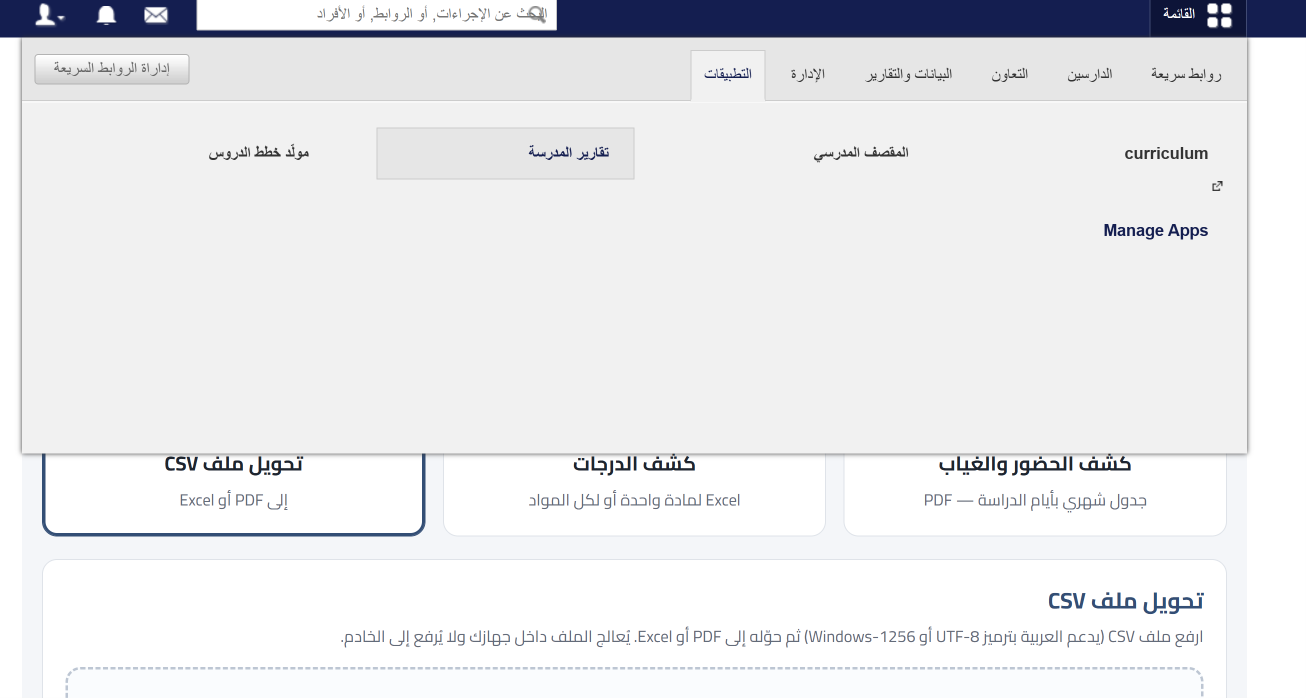
- Click the Convert CSV file card.
- Click Click to choose the file and select the CSV file, or drag and drop it into the box.
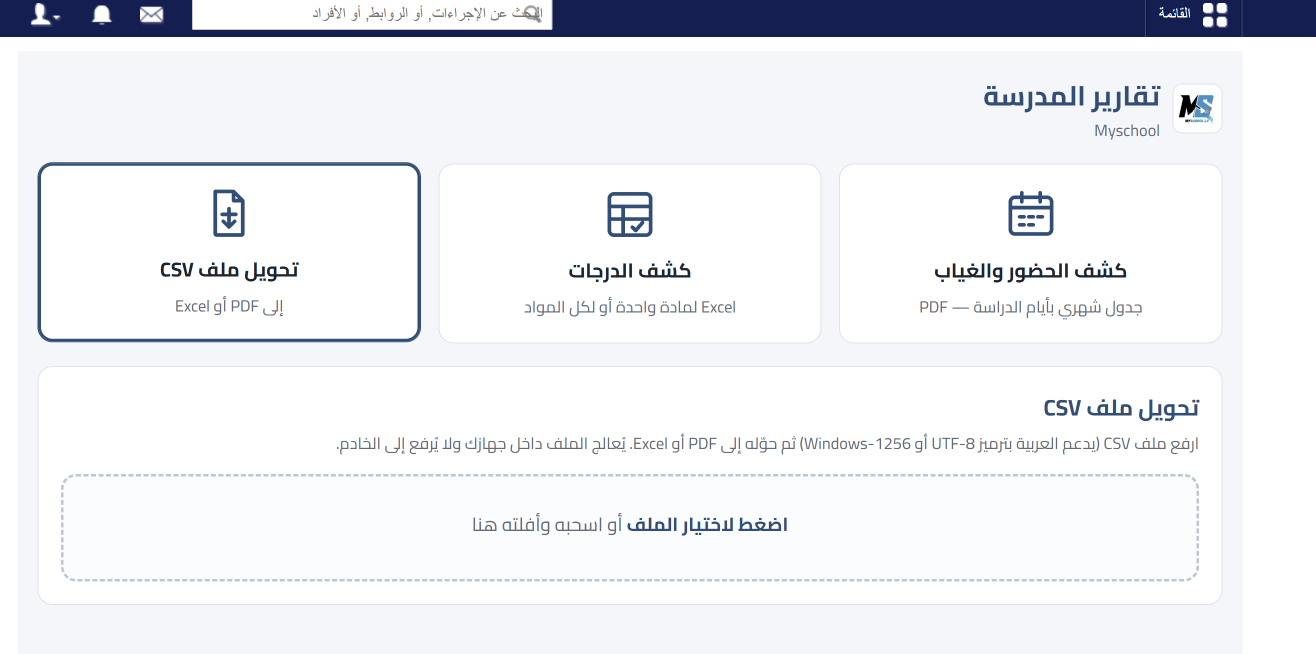
- Choose to convert to Excel or PDF, then download the resulting file.
Related articles
Was this article helpful?
Thanks for your feedback!