
How to access and send a message
Open your message inbox, choose recipients by department or batch, and send an internal message.
You can open Messages from the message icon at the top of the dashboard.
public/images/articles/message-send-1.pngYou can also open Messages from your profile by clicking the Messages button in the top right.
public/images/articles/message-send-2.pngSend a message
-
Click the message icon to open the Inbox page.
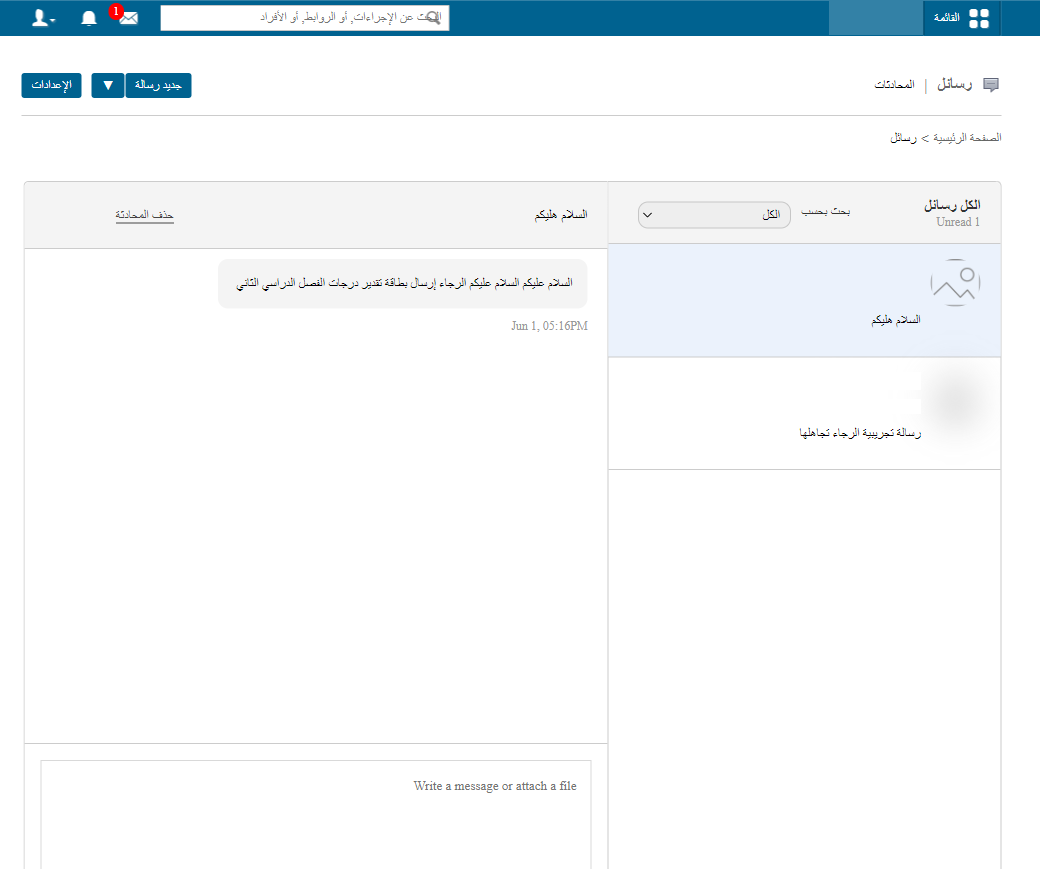
3Message inbox -
Click Create in the top right.
Screenshot — to be addedpublic/images/articles/message-send-4.png4Location of the Create button -
Select recipients from the left panel:
- Employees – choose a department, then click Select All or pick individual employees.
- Students – choose a batch, then click Select All or pick individual students.
- Parents – choose a batch to see its students with their guardian details, then select the parents you need.
Selected recipients appear on the right. To remove someone, click the x next to their name.
Screenshot — to be addedpublic/images/articles/message-send-5.png5Recipient selection panel -
Enter the subject in the Subject field.
-
Type your message in the Message field.
-
Click Send.
New-message notifications
When a message is received, the message icon shows a notification. Until the message is read, the icon keeps showing the number of unread messages.
public/images/articles/message-send-6.pngWas this article helpful?
Thanks for your feedback!