
How the Connect exams feature can help
Connect only the exams that count towards the final result and give each one a weightage totalling 100.
The Connect exams feature lets you connect only the exams that should count towards a student’s final marks or grade. For example, if your institution holds four exams in an academic year but only three count towards the final result, connect only those three exam groups.
Connect exams
- Go to Menu → Academics → Examination → Exam Management to open the Create Exam page.
- Select a course.
- Select a batch.
- In the top right, click Connect exams.
- Select the exams to connect.
- Enter the weightage for each exam.
- Click Save.
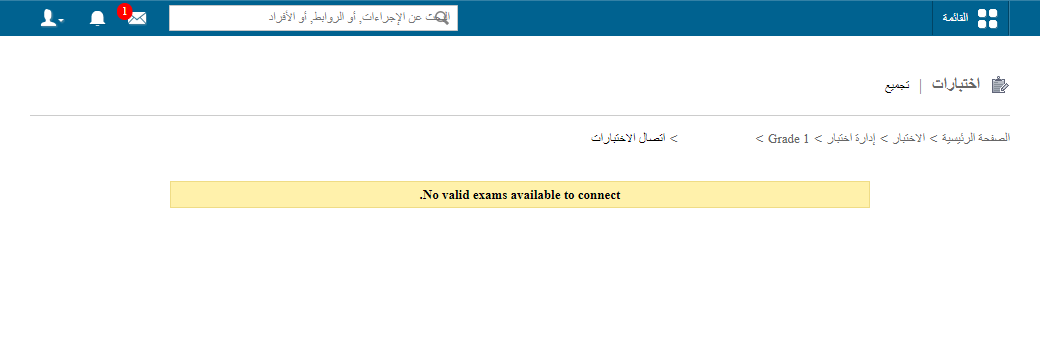
Note: Only exams with the exam type Marks or Marks and Grades can be connected; exams of type Grades cannot. Each connected exam group needs a weightage, and the total must be 100. For example, split it 50-50, 60-40 or 30-40-30. Even if there is only one exam group, you must connect it and give it a weightage of 100.
Was this article helpful?
Thanks for your feedback!