
How to create a task
Create a new task with a title, description, optional attachments, recipients and dates.
Steps
-
Go to Menu → Collaboration → Tasks (use the module access icon at the top of the dashboard).
-
Click New Task in the top-right corner.
-
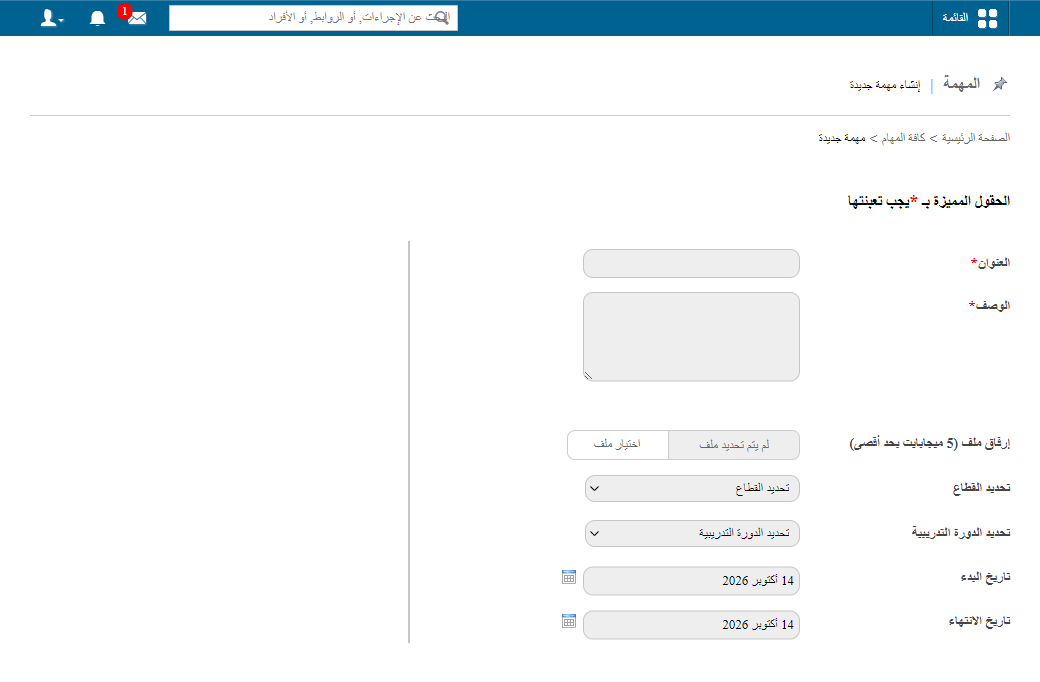
Fill in the required fields:
- Title — the name of the task.
- Description — a short summary of the task.
Note: Both Title and Description are mandatory.
-
Optionally:
- Attach files.
- Select a department (to assign the task to employees).
- Select a course (to assign the task to students).
- Set the start date and due date.
-
Click Save.
Screenshot — to be added
public/images/articles/task-create-2.pngScreenshot — to be added
public/images/articles/task-create-3.pngRelated articles
Was this article helpful?
Thanks for your feedback!