
How to generate employee payslips
Generate payslips for a whole payroll group or a single employee and send them for approval.
Payslips can be generated in two ways: for a whole payroll group, or for a single employee.
For a payroll group
Each group is processed separately per pay period, and payslips can be generated only once per period. With monthly frequency, the group’s payslips are generated once a month.
- Click Menu → Administration → Human Resource → Payroll and Payslip Management → Payslips for Payroll Groups.
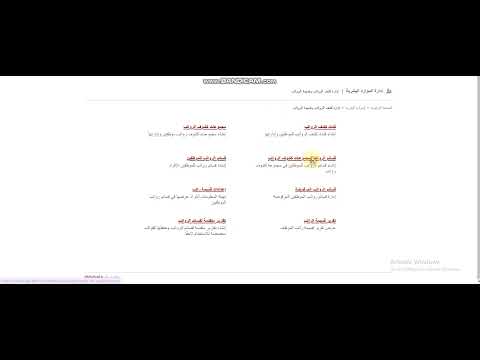
- Click Generate Payslip next to the group.
- Select a date within the pay period and click Proceed.
Screenshot — to be added
public/images/articles/generate-payslip-2.png- Click Generate Payslip for all, or tick/untick employees.
Screenshot — to be added
public/images/articles/generate-payslip-3.png- Click Generate Payslip.
Generated payslips go to the Finance module for review and approval.
For a single employee
Employees with outdated payroll show a red icon.
- Click Menu → Administration → Human Resource → Payroll and Payslip Management → Payslips for Employees.
- Select a department or search for the employee.
- Click Generate payslip next to the employee.
Next step: How to approve or reject payslips
Was this article helpful?
Thanks for your feedback!