
How to set up grading levels for GPA
Define grading levels with minimum scores and credit points for the GPA grading system, globally or per batch.
A grading level is a grade and the corresponding range of marks a teacher can award when marking a student’s assessment or exam answer sheet. Each grading level is given a point value, known as credit points.
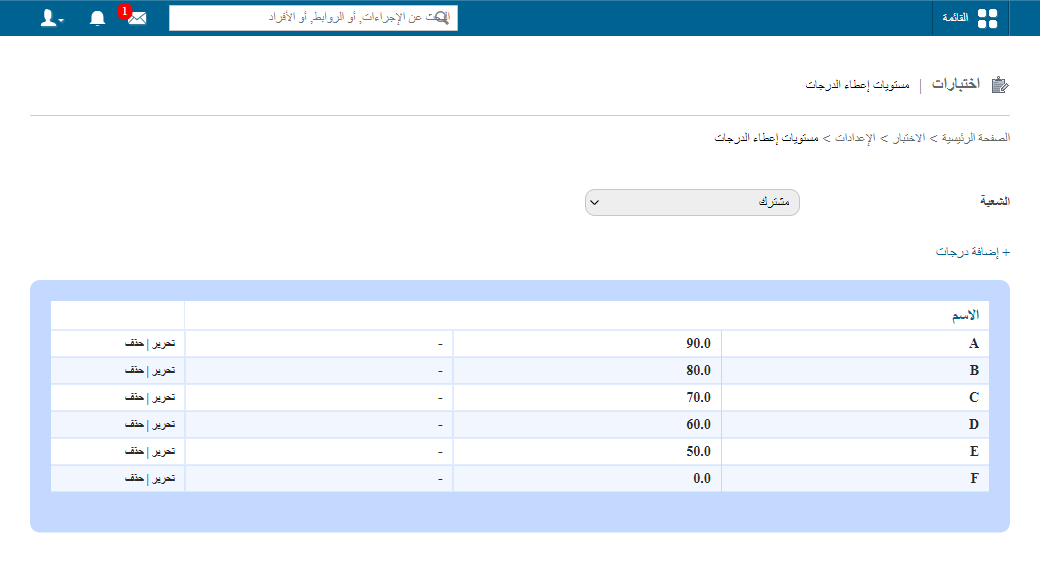
Go to Menu → Academics → Examination → Settings → Set grading levels. By default, grading levels apply to all batches.
Setting custom grading levels for a batch
- Select the batch and click Add Grades.
- In the Name field, enter the name of the grading level.
- In the Min Score (%) field, enter the minimum percentage required for this grading level.
- In the Description field, enter a description of the grading level. It is shown in the Remarks column of the exam-wise report.
- In the Credit Points field, enter the number of points awarded for this grading level.
- Click Save.
To change a grading level, click Edit. To remove it, click Delete.
Related articles
Was this article helpful?
Thanks for your feedback!