
How to set up ranking levels
Create ranking levels such as Passed with Distinction, Passed or Failed based on GPA and number of subjects.
Ranking levels (for example, Passed with Distinction, Passed, Failed or Absent) help categorise students based on the percentage scored in a subject or in a complete course.
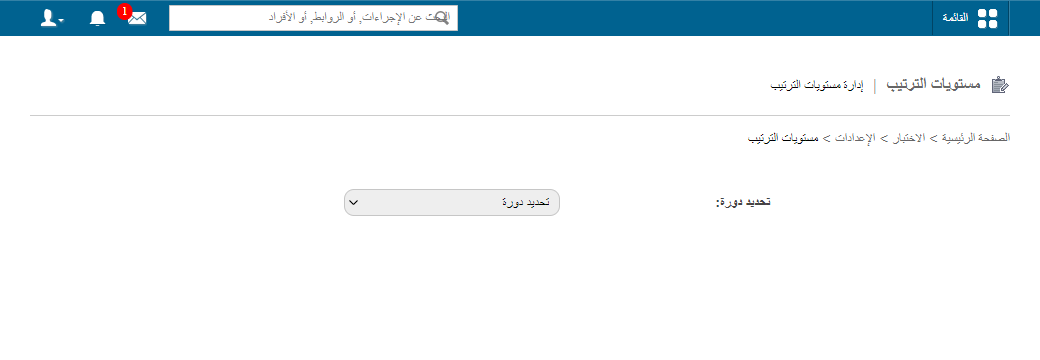
Go to Menu → Academics → Examination → Settings → Ranking Levels.
Steps
-
Select the course you want to set ranking levels for.
-
In the Name field, enter the name of the ranking level.
-
In the GPA field, enter the maximum, minimum or exact GPA used to categorise students.
-
In GPA limit type, select one of:
- Upper: the maximum grade points.
- Lower: the minimum grade points.
- Exact: an exact grade point value.
-
In the Number of subjects field, enter the maximum, minimum or exact number of subjects.
-
In Subject limit type, select one of:
- Upper: the maximum number of subjects.
- Lower: the minimum number of subjects.
- Exact: an exact number of subjects.
-
Select the Consider all previous batches? checkbox to apply the ranking level across all previous and current batches of students.
-
Click Save.
-
Use the arrow icons to set the priority of the ranking levels. The system checks ranking levels in this order when generating reports.
Screenshot — to be addedpublic/images/articles/gpa-ranking-levels-2.png2Arranging the order of ranking levels -
To change or remove a ranking level, click Edit or Delete.
public/images/articles/gpa-ranking-levels-3.pngRelated articles
Was this article helpful?
Thanks for your feedback!