
What is the ranking level report?
List students by ranking level for a whole course or a single batch, overall or for one subject.
The Ranking Level Report lists students according to the selected ranking level.
Steps
- Go to Menu → Academics → Examination → Reports center → Ranking Level Report.
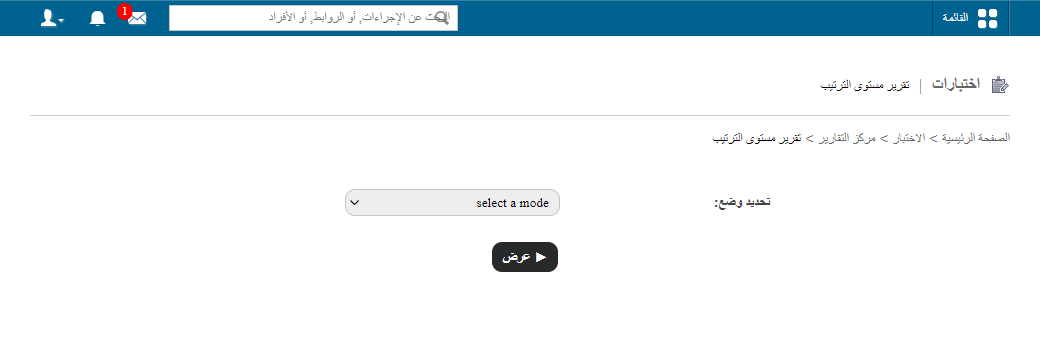
- In the Select a mode field, select Course-wise or Batch-wise (see below).
- In the top right, click PDF report to generate a PDF file, or CSV report to generate a CSV file.
Course-wise
Course-wise shows the ranking level of students for the whole course, including previous batches.
Select a course, a batch group (only if you have grouped batches) and the ranking level, then click View.
If you selected the Consider all previous batches? checkbox when setting up the ranking levels, the course-wise report looks like this:
public/images/articles/gpa-ranking-level-report-2.pngpublic/images/articles/gpa-ranking-level-report-3.pngBatch-wise
Batch-wise shows the ranking level of students for the selected batch only.
Select a batch, the ranking level and a report type (Overall or Subject-wise), then click View. With Overall, the report lists students taking all subjects into account.
public/images/articles/gpa-ranking-level-report-4.pngWith Subject-wise, the report lists students taking only the selected subject into account.
public/images/articles/gpa-ranking-level-report-5.pngpublic/images/articles/gpa-ranking-level-report-6.pngRelated articles
Was this article helpful?
Thanks for your feedback!