
How to customize the gradebook report
Choose the report card template and set student details, signatures, attendance, remarks, final score and grading scale display.
To customize the look and feel of the gradebook template, go to Menu → Academics → Gradebook → Exam Planner → More → Student Report Settings.
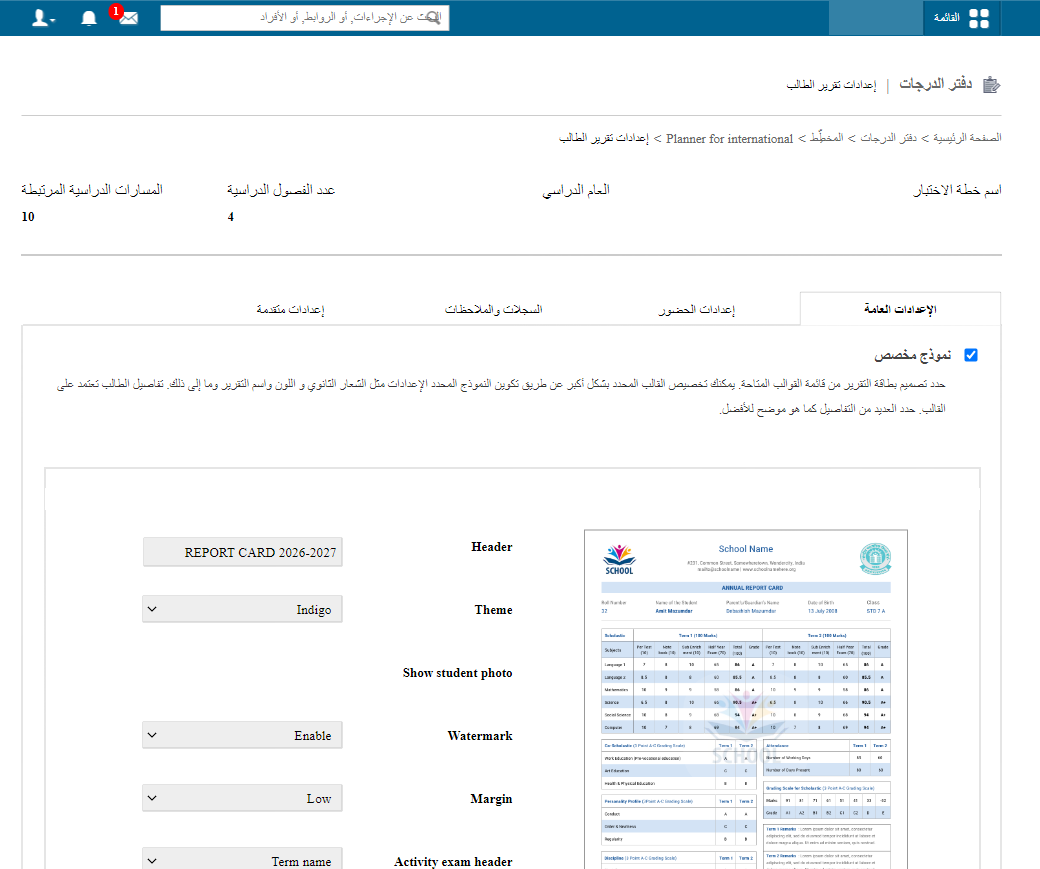
What you can customize
- Choose the default template or one of the custom templates provided by myschool.
Screenshot — to be added
public/images/articles/gradebook-customize-report-2.png- Select the student details and signatures to display on the report card.
Screenshot — to be added
public/images/articles/gradebook-customize-report-3.png- Configure how attendance is displayed on the report card.
Screenshot — to be added
public/images/articles/gradebook-customize-report-4.png- Set up records and remarks, if they should be added to the report card.
Screenshot — to be added
public/images/articles/gradebook-customize-report-5.png- Set the final score to show the aggregate score, grade or percentage on the report card.
- Choose whether to display the grading scale used by the school.
Screenshot — to be added
public/images/articles/gradebook-customize-report-6.pngThe image below shows how these settings appear on a sample gradebook report that uses a custom template.
Screenshot — to be added
public/images/articles/gradebook-customize-report-7.pngWas this article helpful?
Thanks for your feedback!