
Generate the active students report
List all active students with admission details, batch, course, gender and fee status, and export the list as CSV.
The administrator or a privileged employee (the View Additional Reports privilege is required) can view the list of active students from the Reports center.
Generate the report
- At the top of your dashboard, click Menu → Data and Reports → Reports to open the Reports center.

- Click Student. All active students are displayed with their admission number, admission date, batch, course, gender and fee payment status.
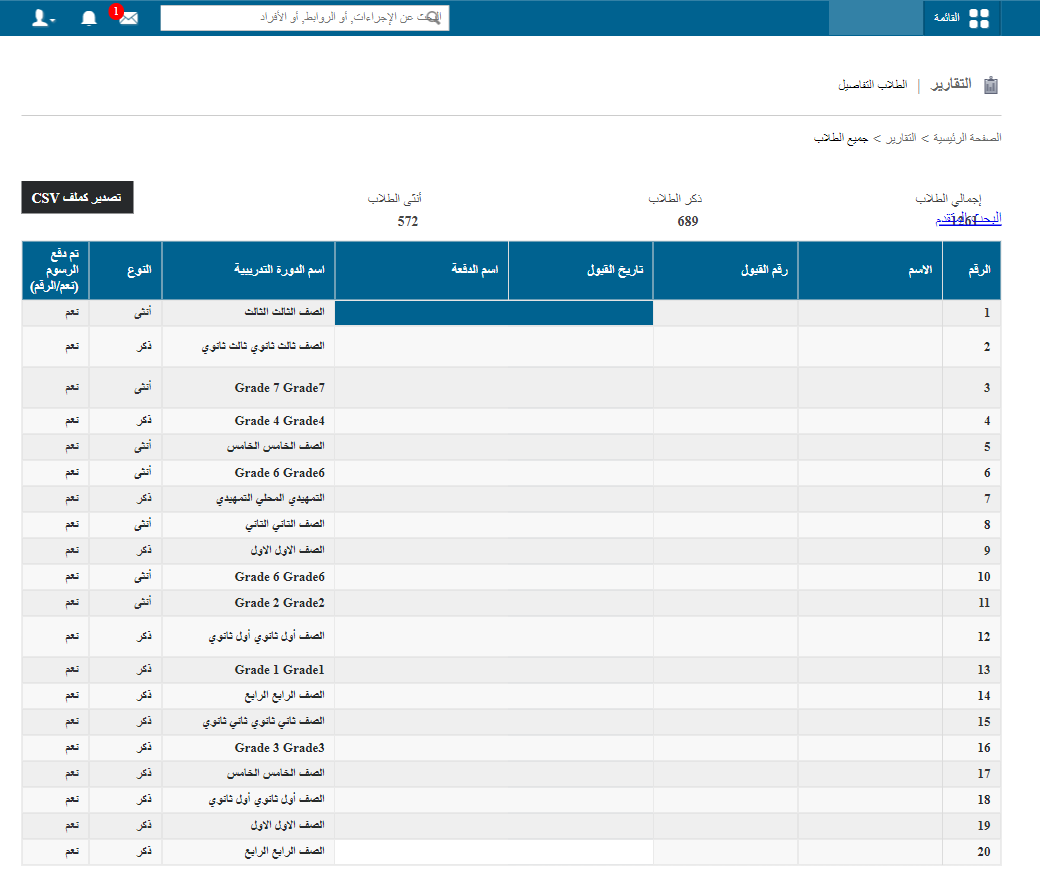
Click a student’s name to open the student’s profile.
- Click Export as CSV to export the details as a CSV file.
- When the file status changes from In Queue to Download, click Download and save the file to your computer. This may take a while.
Screenshot — to be added
public/images/articles/report-active-students-3.pngNote: Keep refreshing the page until the download link appears.
Screenshot — to be added
public/images/articles/report-active-students-4.pngWas this article helpful?
Thanks for your feedback!