
Generate the course/batch details report
View all active courses with their batch and student counts, drill down to batch and student details, and export as CSV.
The Course / Batch Details report lists all active courses together with the number of batches and the number of students in each course.
Generate the report
- At the top of your dashboard, click Menu → Data and Reports → Reports → Course / Batch Details.
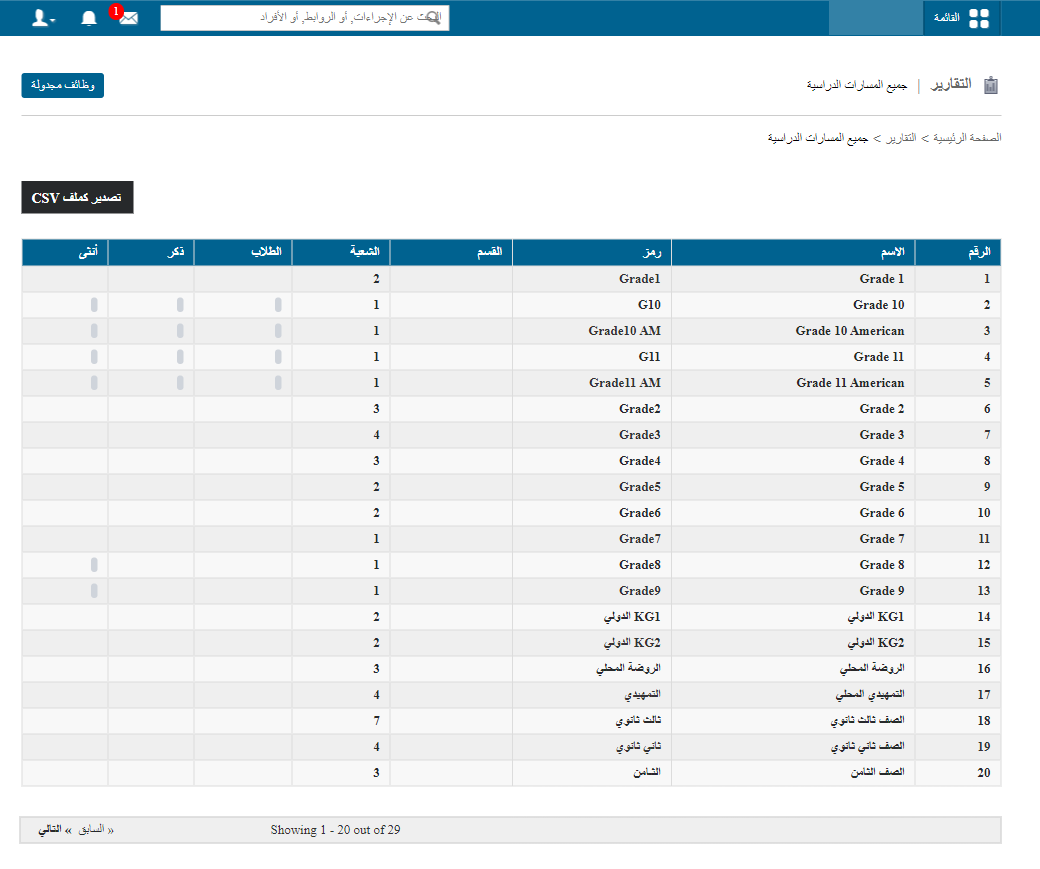
- Click a course to view its batches and batch details.
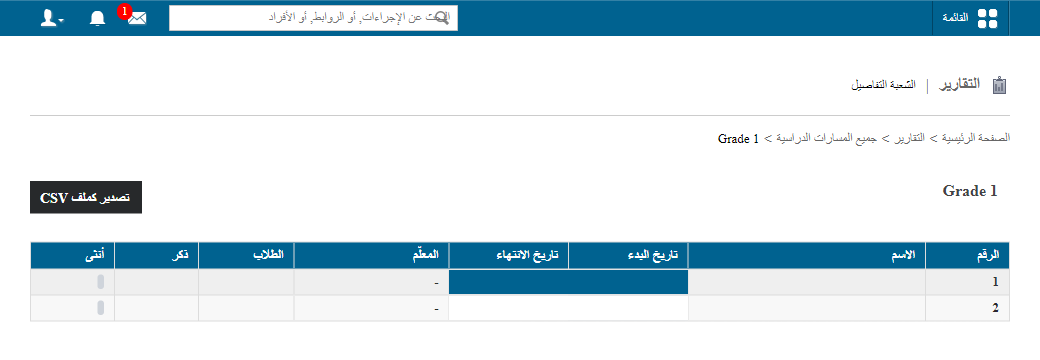
- Click a batch to view the students in the batch and their details.
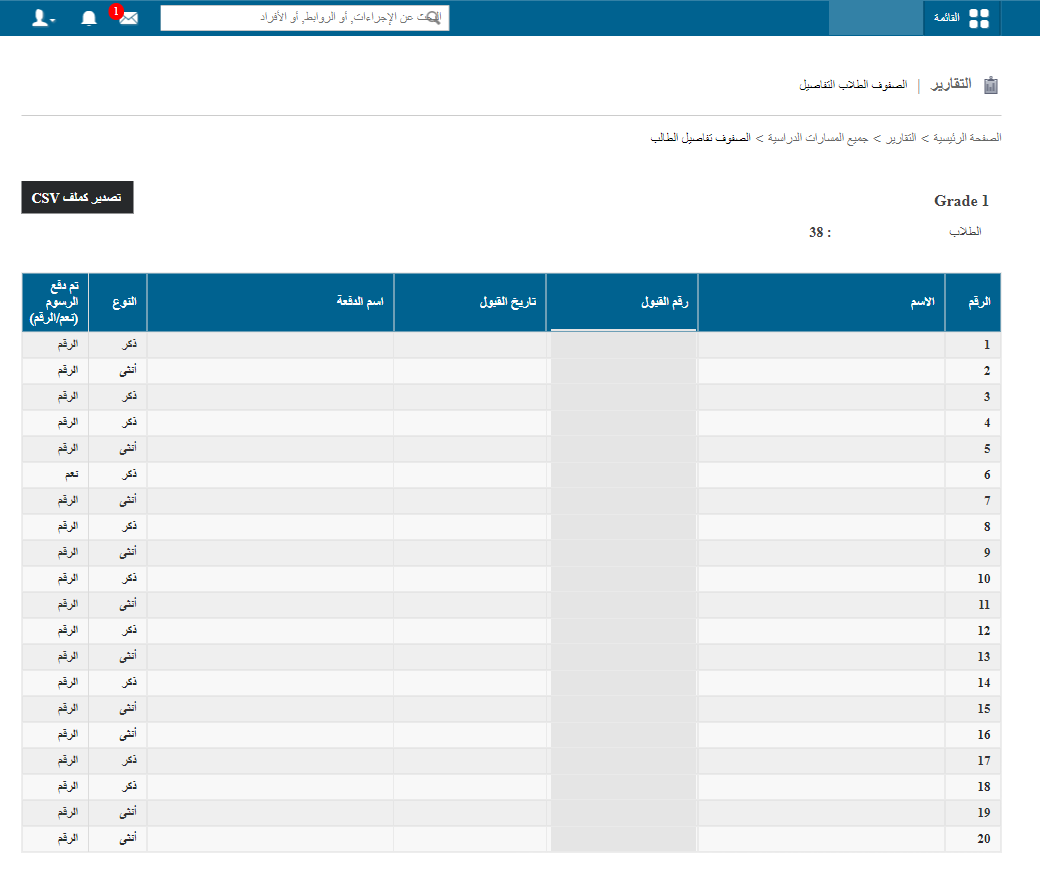
Export the report
At any time, click Export as CSV to export the details as a CSV file. This may take a while. When the file status changes from In Queue to Download, click Download and save the file to your computer.
Note: Keep refreshing the page until the download link appears.
Screenshot — to be added
public/images/articles/report-course-batch-details-4.pngWas this article helpful?
Thanks for your feedback!