
Generate the list of former employees
View all former (archived) employees for a date range with joining and leaving dates, and export the list as CSV.
The Former Employees Details report lists all former (archived) employees. The administrator or a privileged employee (the View Additional Reports privilege is required) can open it from the Reports center.
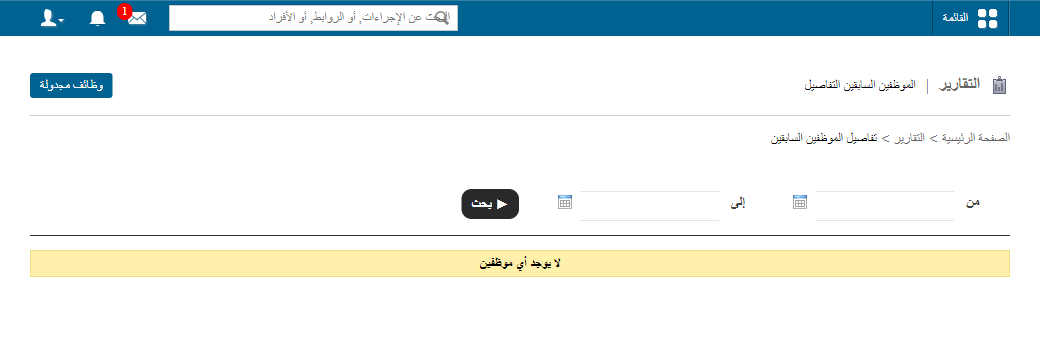
Generate the report
At the top of your dashboard, click Menu → Data and Reports → Reports → Former Employee Details.
The report lists all employees archived during the specified date range, with each employee’s joining date, leaving date, department, position, manager and gender. Click an employee’s name to view the former employee’s profile.
Export the report
- Click Export as CSV to export the details as a CSV file.
- When the file status changes from In Queue to Download, click Download and save the file to your computer. This may take a while.
Note: Keep refreshing the page until the download link appears.
public/images/articles/report-former-employees-2.pngWas this article helpful?
Thanks for your feedback!