
How to approve, deny or reverse a leave request
Managers review their reportees' leave requests, approve or deny them, and reverse an earlier decision.
Only reporting managers can approve or deny leave requests from employees who report to them.
Approve or deny
- Click Menu → Academics → Leaves → Reportee’s Leaves.
- Click Pending leave applications at the top.
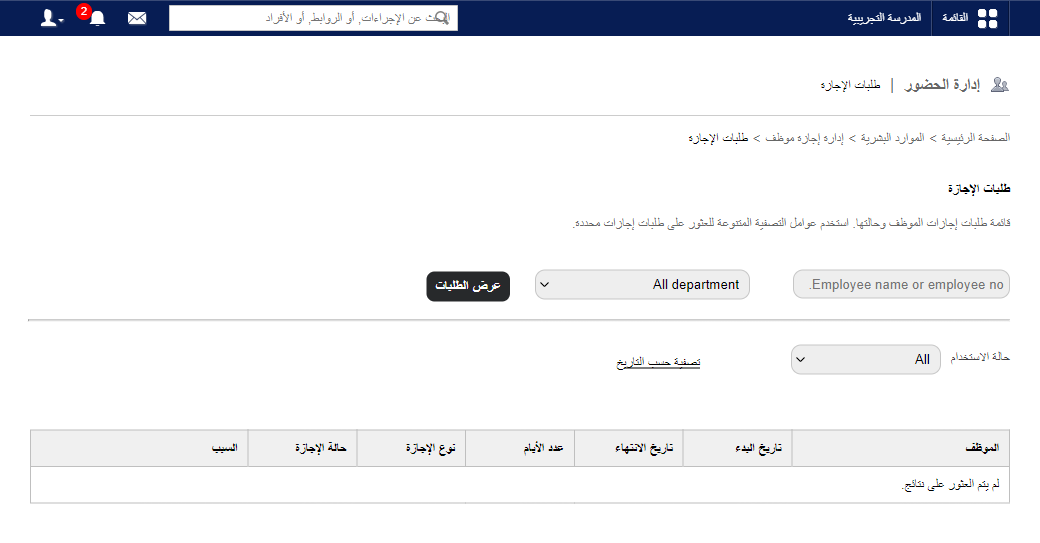
- Click the employee’s name to open the request.
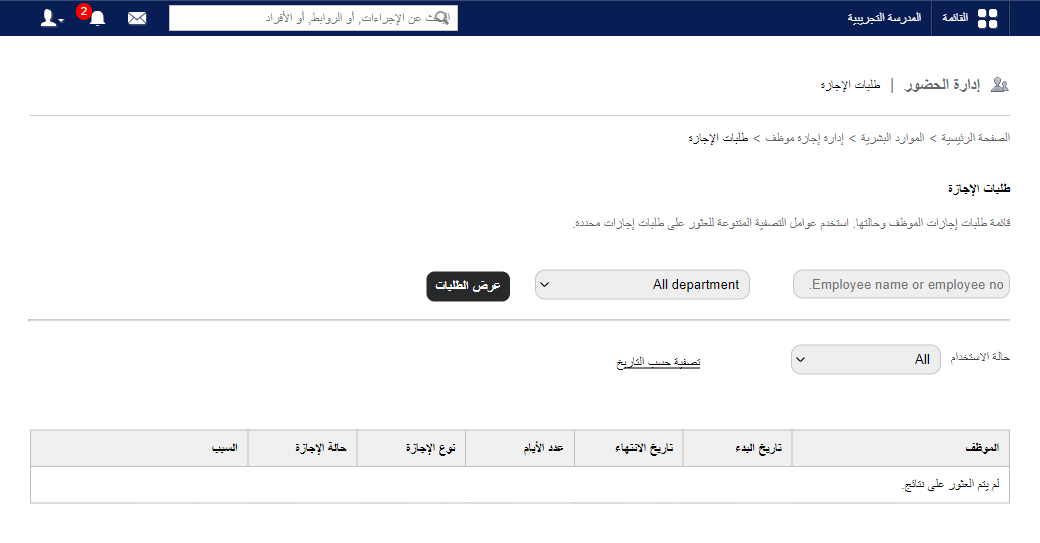
Note: You’re told if it’s an additional leave. If LOP is enabled for the leave type, you can mark it as deductible (LOP).
- Enter remarks.
- Click Approve or Deny.
Reverse an earlier decision
Managers can see all of an employee’s requests and reverse an approval or denial.
- Click Menu → Academics → Leaves → Reportee’s Leaves. Your reportees are listed with their leave summary.
- Select the employee; their requests are shown.
- Click the request.
- Enter remarks.
- Click Deny to deny a previously approved request (or Approve for a denied one).
Screenshot — to be added
public/images/articles/approve-leave-3.pngWas this article helpful?
Thanks for your feedback!