
How to add and manage leave types
Create leave types with yearly counts, carry-forward and deduction rules, and edit, deactivate or delete them.
Leave types are the kinds of leave employees can request, such as sick leave, casual leave or annual leave. You can set up several types with different settings.
Add a leave type
- Click Menu → Administration → Human Resource → HR Settings → Leave Types → Add Leave Types.
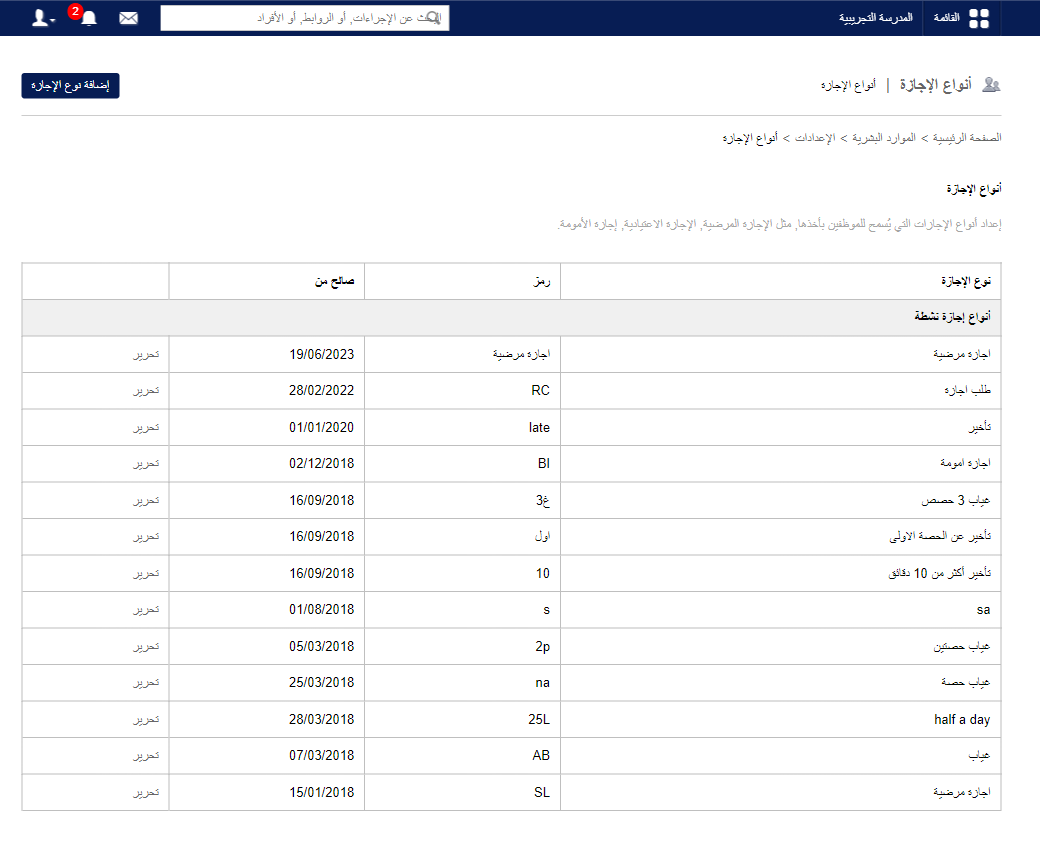
- Enter:
| Field | Description |
|---|---|
| Leave name | The leave type’s name. |
| Leave code | A code for the type. |
| Leave count | Maximum leaves per employee per year. |
| Valid from | When the type starts applying to all employees. |
| Leave balance | Allow carry forward (fully or partly) or Discard balance. |
| Additional leaves | Liable for salary deduction (LOP) or No salary deduction. |
| Status | Active (selectable when applying or marking leave) or Inactive. |
- Click Create.
Edit, deactivate or delete
Note: A leave type already used in a leave application can’t be deleted — deactivate it instead.
Click Menu → Administration → Human Resource → HR Settings → Leave Types.
- Edit: click Edit, make changes and click Update.
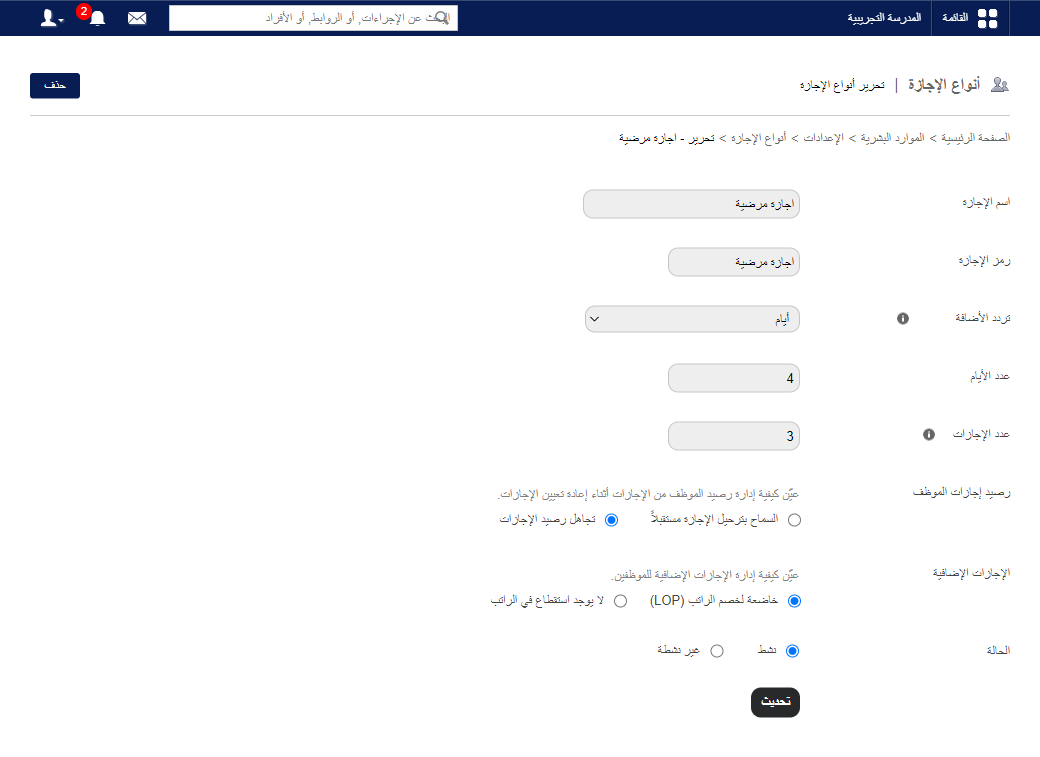
- Deactivate: choose Inactive under Status. It moves to Inactive leave types.
Screenshot — to be added
public/images/articles/leave-types-3.png- Delete: click Delete.
Was this article helpful?
Thanks for your feedback!