
How to view the exam-wise report
View each student's marks in an exam group, add remarks, and export individual or consolidated PDF and CSV reports.
The Exam-wise Report shows the marks each student obtained in an exam.
Steps
-
Go to Menu → Academics → Examination → Reports center → Exam-wise Report.
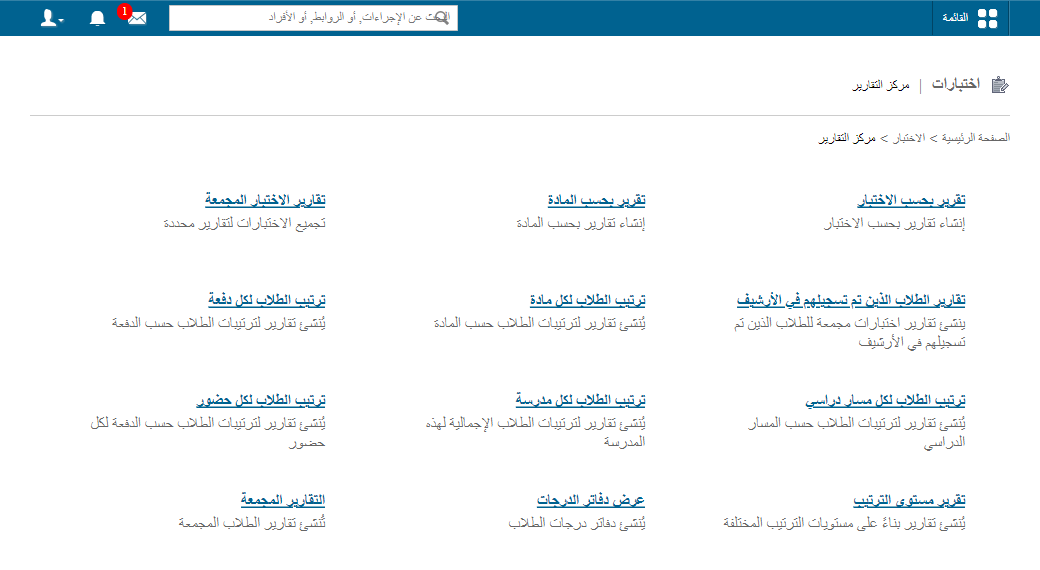
1Opening the Exam-wise Report -
Select the batch and exam group, then click View.
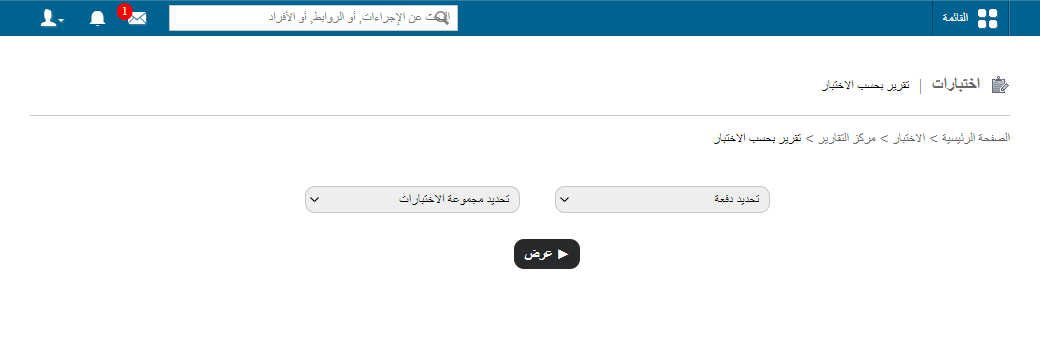
2Selecting the batch and exam group
The batch’s students are listed on the left. Click a student’s name to view their report.
- To add remarks, click Add remarks, enter your remarks and click Submit.
- To generate a PDF of the student’s results, click PDF report.
A graph comparing the student’s performance with the class average appears at the bottom of the report.
Screenshot — to be added
public/images/articles/cwa-exam-wise-report-3.pngReports for the whole batch
- To generate a PDF of all students’ results in one click, click Consolidated PDF Report in the top right.
- To generate a consolidated report of all students, click Consolidated Report in the top right. Then click PDF report or CSV report to export it.
Walkthrough
Screenshot — to be added
public/images/articles/cwa-exam-wise-report-4.pngWas this article helpful?
Thanks for your feedback!