
How to create, edit or delete student fee discounts
Create fee discounts for a batch, a student category or specific students, as a fixed amount or percentage.
Your institution may offer fee discounts, for example to staff children or siblings. Discounts apply when processing student payments and can be created for a batch, a student category or specific students.
Create a discount
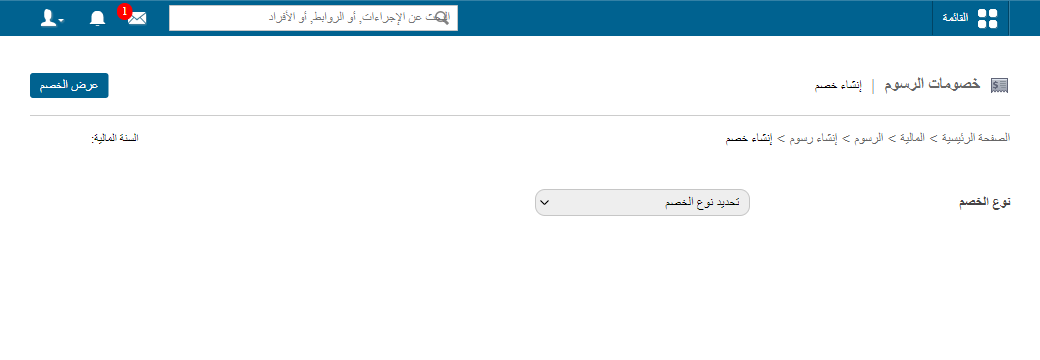
Click Menu → Administration → Finance → Fees → Create Fees → Create Discount, then choose the type:
Batch discount
- Enter the discount name.
- Select the fee category.
- Choose whether it applies to the category’s batches or specific particulars.
- Select the batches or particulars.
- Enter the amount or percentage, depending on the discount mode.
- Click Create.
Student category discount
- Enter the discount name.
- Select the fee category.
- Select the student category (e.g. staff children).
- Choose batches or particulars and select them.
- Enter the amount or percentage.
- Click Create.
Screenshot — to be added
public/images/articles/fee-discount-2.pngIndividual student discount
- Enter the discount name.
- Select the fee category.
- Choose batches or particulars, select them, then select the students.
- Enter the amount or percentage.
- Click Create.
Screenshot — to be added
public/images/articles/fee-discount-3.pngEdit or delete a discount
- Edit: only before student payments have started.
- Delete: possible any time.
- Go to Menu → Administration → Finance → Fees → Create Fees → Create Discount.
- Click View Discount at the top.
- Select the batch and fee category; discounts are listed.
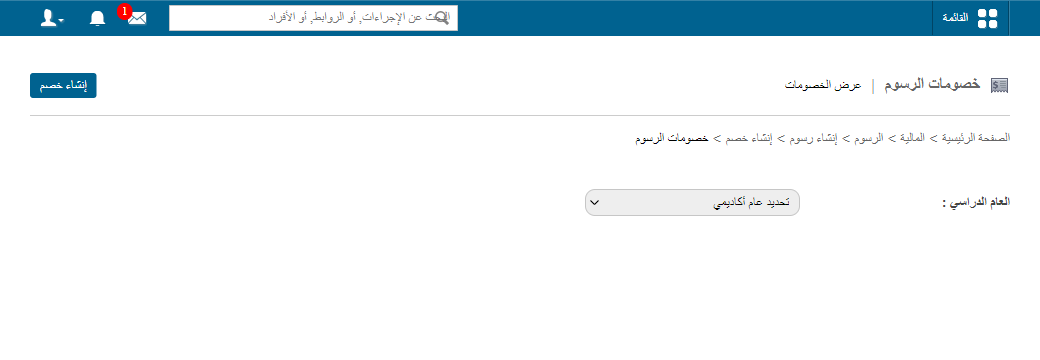
- Click Edit or Delete.
Was this article helpful?
Thanks for your feedback!