
How to create a sales invoice
Create a sales invoice for items sold from a store, apply tax, charges and discounts, and print it.
After you sell an item, create a sales invoice and give a copy to your customer.
Steps
-
Go to Menu → Administration → Inventory → Billing to open the Invoice page.
-
In the top-right corner, click New.
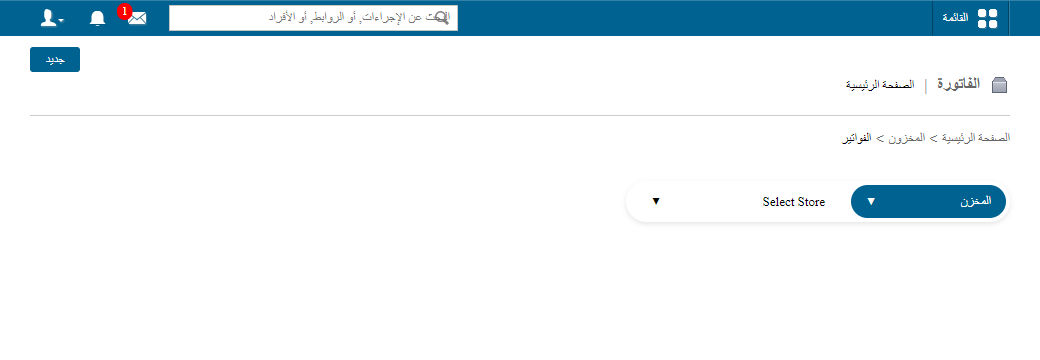
1The New button on the Invoice page -
In the Store field, select the store the item belongs to.
-
In the Issued to field, enter the customer’s myschool user ID to search for and select the user. The Name and Address fields are filled in automatically.
Note: If the customer is not a myschool user, you can enter their name and address manually.
-
Enter the billing details. You can search for items by item code or item name. Only sellable items can be searched. To add more than one item to the invoice, click Add New Item.
-
In the Tax (%) field, enter the tax percentage to apply when selling the item(s).
Screenshot — to be addedpublic/images/articles/inventory-create-sales-invoice-2.png2The Tax field on the invoice -
Enter any additional charges or discounts. The Total is the amount the customer must pay.
-
Select the Is Paid checkbox if the customer has paid.
Note: You can create an invoice even if the items have not been paid for. When you receive the payment later, edit the invoice, select Is Paid and save it.
-
Click Save to create the invoice.
Screenshot — to be addedpublic/images/articles/inventory-create-sales-invoice-3.png3Saving the invoice -
Click Print to print the invoice.
public/images/articles/inventory-create-sales-invoice-4.pngpublic/images/articles/inventory-create-sales-invoice-5.pngRelated articles
Was this article helpful?
Thanks for your feedback!