
What is the ranking level report?
List students by a selected ranking level, course-wise or batch-wise, and export the result as PDF or CSV.
The Ranking Level Report lists the students who fall under a selected ranking level.
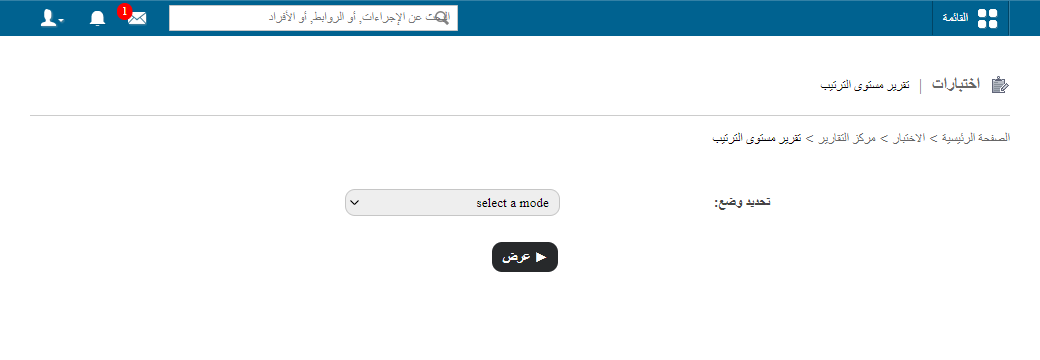
Go to Menu → Academics → Examination → Reports center → Ranking Level Report. In the Select a mode field, choose one of the following modes.
Course-wise
Shows the ranking level of students for the whole course, including previous batches.
If you select Course-wise, also select a course, a batch group (only if you have grouped batches) and the ranking level, and then click View.
If you selected Consider all previous batches? when setting up ranking levels, the course-wise report looks like this:
public/images/articles/normal-ranking-level-report-2.pngBatch-wise
Shows the ranking level of students for the selected batch only.
If you select Batch-wise, also select a batch, the ranking level and a report type (Overall or Subject-wise), and then click View.
If the report type is Overall, the report lists students based on all subjects.
public/images/articles/normal-ranking-level-report-3.pngIf the report type is Subject-wise, the report lists students based on the selected subject only.
public/images/articles/normal-ranking-level-report-4.pngIn the top right, click PDF report to generate a PDF report, or CSV report to generate a CSV report.
Was this article helpful?
Thanks for your feedback!