
How to view student ranking per course
Rank students of all batches in a course by their total combined percentage and export it as PDF or CSV.
The Student Ranking per Course report ranks the students of all batches in a course by their total combined percentage.
-
Go to Menu → Academics → Examination → Reports center → Student Ranking per Course.
-
Select a course and a batch group, and then click View.
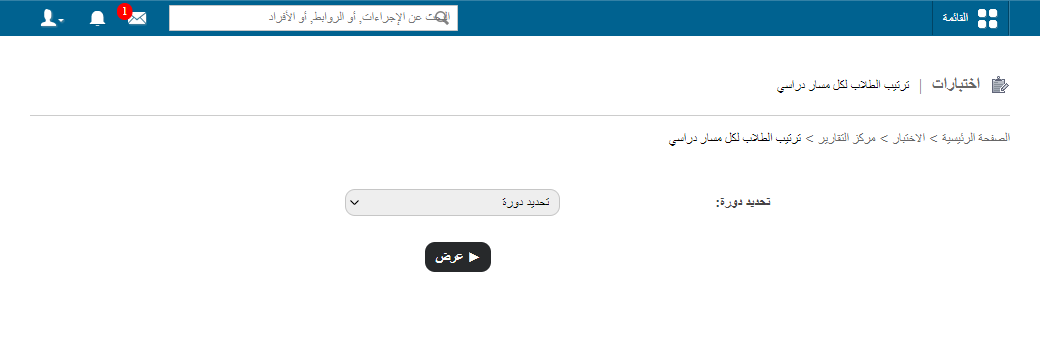
1Selecting the course and batch group -
In the top right, click PDF report to generate a PDF report, or CSV report to generate a CSV report.
Tip: To rank only some batches of a course, first create a batch group. See How the Group batches feature can help.
Was this article helpful?
Thanks for your feedback!