
How to add, edit and delete normal subjects
Add a normal subject to a batch from the Manage Course/Batch page or the Subjects page, then edit or delete it.
Add normal subjects to a batch
To add a normal subject you must be the administrator or a privileged employee (with Manage Course/Batch or Subject Master privilege). A normal subject is mandatory to meet course requirements and applies to all students in the batch.
If you are not importing subjects from a previous batch, add them using one of two methods.
Method 1: from Manage Course or Manage Batch
Click Menu → Administration → Settings → Manage Course/Batch → Manage Course, or Manage Batch.
- Select the course. All its batches are displayed.
- Select the batch.
- In the top corner, click Manage → Subject to open the Assign Subject page.

- Click Add Normal Subject.

public/images/articles/normal-subjects-3.png- In Name, enter the subject name.
- In Code, enter the subject code.
- In Max weekly classes, enter the maximum number of classes per week.
- In Credit hours, enter the number of credit hours.
Note: Credit hours appear only when the grading system is GPA or CWA.
- Tick No exam if no exams will be held for this subject.
- Click Save.
Method 2: from the Subjects page
Click Menu → Administration → Settings → Manage Subject.
- Select the batch, then click Add Normal Subject at the top.
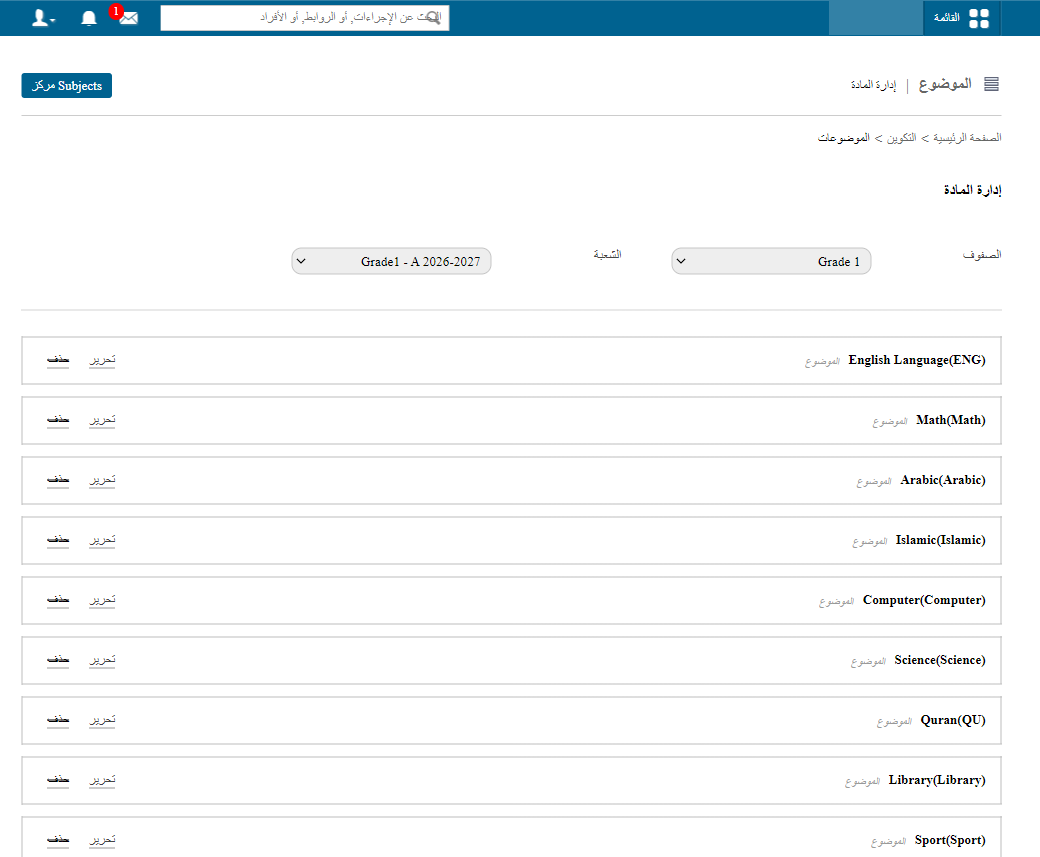
public/images/articles/normal-subjects-5.png- Enter the name, code, max weekly classes and credit hours (GPA/CWA only).
- Tick No exam if needed.
- Click Save.
public/images/articles/normal-subjects-6.pngEdit normal subjects
Edit through the Subjects page: Menu → Administration → Settings → Manage Course/Batch → Manage Subject.
- Select the batch. Its subjects are displayed.
- Click Edit next to the subject.
public/images/articles/normal-subjects-7.png- Make your changes and click Save.
Delete normal subjects
You must be the administrator or a privileged employee. A subject can only be deleted if its exam schedule has not been published.
Click Menu → Administration → Settings → Manage Course/Batch → Manage Subject.
- Select the batch. Its subjects are displayed.
- Click Delete next to the subject.
public/images/articles/normal-subjects-8.png- Click OK to confirm.
Warning: A normal subject cannot be deleted if it is assigned to an employee, has a timetable, or has exams scheduled, because other data depends on it.
Was this article helpful?
Thanks for your feedback!