
Settings page overview
An explanation of every option on the Settings page, from classes, categories and subjects to academic years and custom words.
myschool includes many modules and plugins for managing administrative and learning activities. Before using the modules, a few core settings need to be completed.
Accessing Settings
- Click Menu → Administration → Settings on the dashboard.
Screenshot — to be added
public/images/articles/settings-overview-1.png- The Configuration Home page opens.
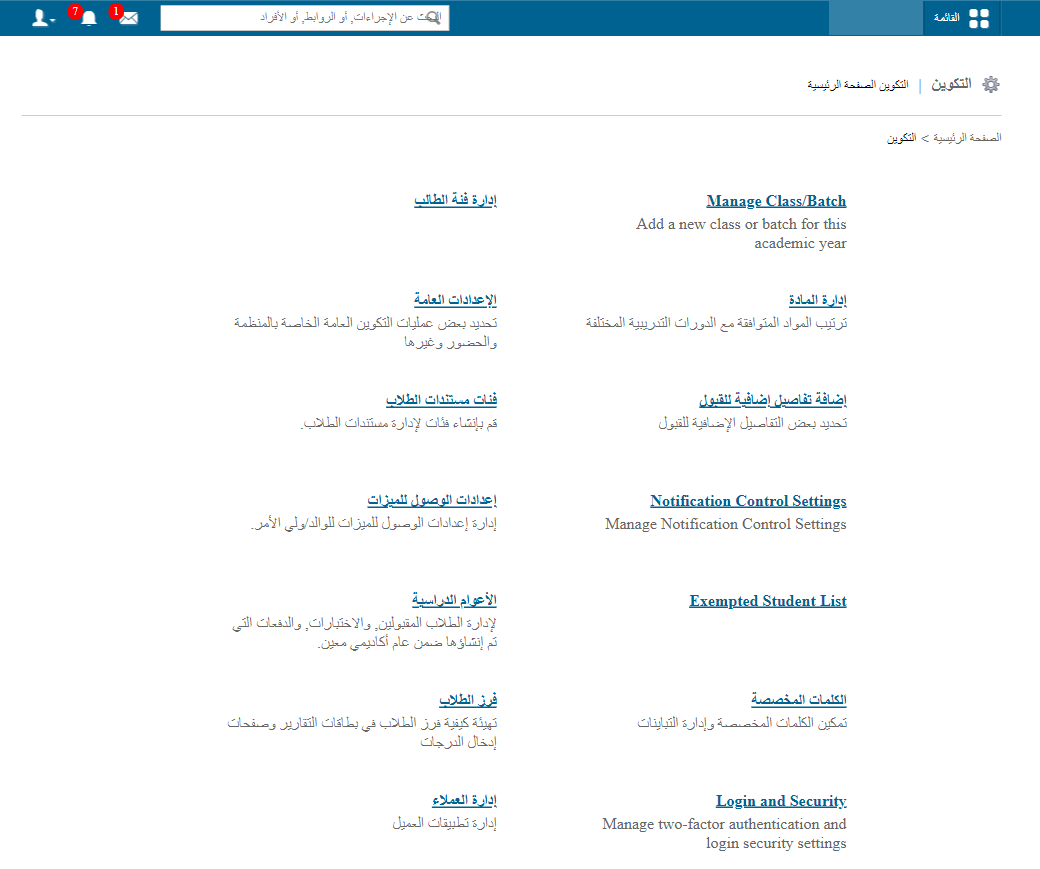
Settings options
- Manage Class/Section: configure classes or courses and their sections, e.g. Grade 1, BBA Year 1, and sections A, B or Semester 1.
- Manage student category: add the student categories in your institution, used for fee discounts or grouping students, e.g. staff children, siblings, day scholars, boarders.
- Manage subjects: add subjects and assign them to courses, batches or classes.
- General settings: general information such as school name, address, logo, grading system, language and currency.
- Admission additional details: add extra fields used when admitting a student, e.g. passport number or birth certificate. Once added, the fields appear when entering student details.
- Manage student roll numbers: sort students by admission number, first name or last name and generate roll numbers from that order.
- Student document categories: create document categories for uploads at admission, e.g. passport or previous report card.
- Feature access settings: choose which features parents/guardians can access:
- Gallery: view the shared gallery
- Hostel: view the ward’s hostel details
- Transport: view the ward’s transport details
- Student documents: view the ward’s documents
- Assignments: view the ward’s homework
- Tasks: view tasks
- Academic years: add the institution’s academic years, e.g. 2025–2026, 2026–2027. All admissions, exams and sections are organised under the selected year, keeping data in chronological order.
- Custom words: replace terms shown in the interface to match your institution, e.g. call courses “classes” or batches “sections”.
- Manage clients: add external apps or websites so users can open them from inside their account.
Was this article helpful?
Thanks for your feedback!