
How to do the basic settings in Transport
Configure route mode, fare mode, automatic fee updates and the academic year before setting up transport.
Complete the basic settings before you start setting up transport. Go to Menu → Administration → Transport → Settings → Basic Settings.
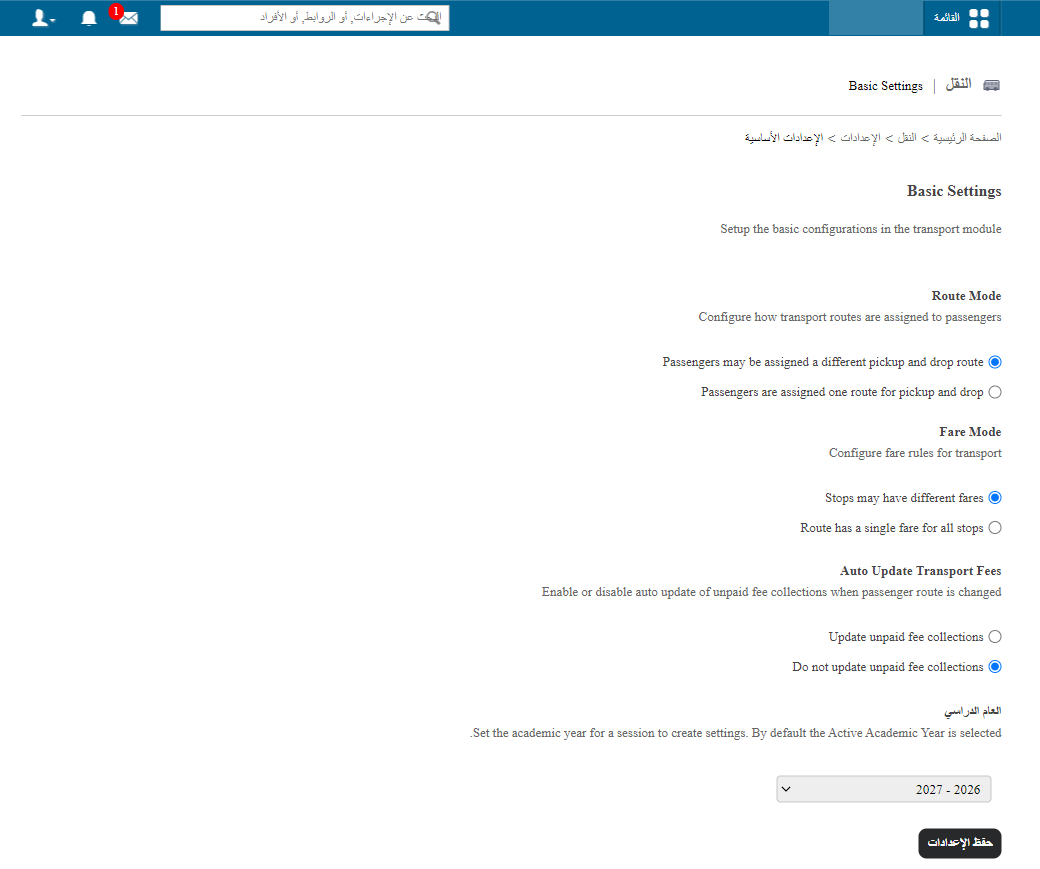
1. Route mode
Route mode decides how routes are assigned to passengers. There are two options:
Passengers may be assigned a different pickup and drop route
Choose this option if passengers use different routes for pickup and drop. When you assign transport to students or employees, you will see separate pickup and drop options.
public/images/articles/transport-basic-settings-2.pngPassengers are assigned one route for pickup and drop
Choose this option if passengers use the same route for both pickup and drop. The transport assignment page will show a single route.
2. Fare mode
Fare mode decides how fares are set for your transport service. There are two options:
Stops may have different fares
Choose this option if each stop has its own fare. When creating a route, you will be able to enter a different fare for each stop.
public/images/articles/transport-basic-settings-3.pngRoute has a single fare for all stops
Choose this option if all stops on a route share one fare. When creating a route, you will enter a single fare for the route.
public/images/articles/transport-basic-settings-4.png3. Auto update transport fees
Choose whether unpaid fee collections are updated automatically when a passenger’s route changes.
4. Academic year
Select the academic year whose transport details (stops, routes and vehicles) you want to view and manage in the module.
Was this article helpful?
Thanks for your feedback!