
How to add custom fields to record route additional details
Create custom text, select or check box fields for routes, set them as mandatory, and arrange their display order.
Steps
-
Go to Menu → Administration → Transport → Settings, select Route Additional Details and click Add Details to create a new custom field.
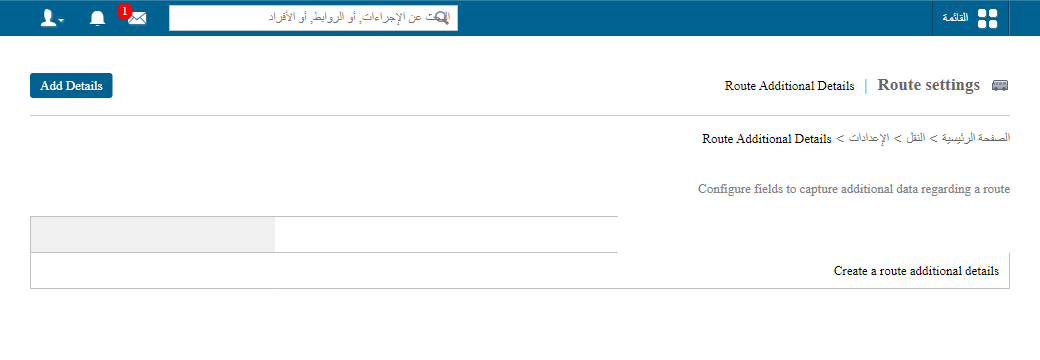
1Route Additional Details page with the Add Details button -
In the Name field, enter the name of the custom field as it should appear when setting up routes.
-
Set the field status:
- Active – the field is available when setting up routes.
- Inactive – the field is not available when setting up routes.
Note: You can inactivate a field at any time.
-
Select Is mandatory if the field must be filled in during route setup.
-
In Input method, choose one of the following:
- Text Box – for short text.
- Select Box – to pick one option from a drop-down list.
- Check Box – to select multiple options.
-
Click Save.
Use the arrow icons to set the order in which fields are displayed when setting up routes.
Screenshot — to be added
public/images/articles/transport-route-custom-fields-2.pngScreenshot — to be added
public/images/articles/transport-route-custom-fields-3.pngWas this article helpful?
Thanks for your feedback!