
How to allocate a classroom
Assign rooms to classes weekly or for a specific date by drag and drop.
The administrator or an employee with the Manage Allocations or Manage Buildings and Allocations privilege can assign rooms to classes based on the timetable.
- Click Menu → Academics → Timetable → Class Room Allocation → Allocate.
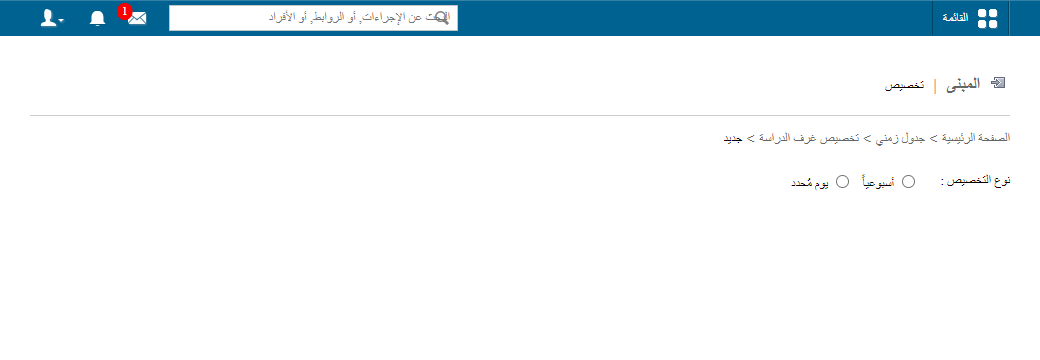
- Choose the allocation type:
| Type | Use |
|---|---|
| Weekly | Allocate rooms for the whole timetable period. |
| Date specific | Allocate rooms for one date, overriding an existing allocation. |
Weekly
- Select the timetable and click View. Only batches with timetable entries appear.
- Select the weekday (e.g. Sunday).
- Select the building at the bottom; its rooms appear.
- Drag a room onto a class. Allocated classes turn green.
Screenshot — to be added
public/images/articles/allocate-classroom-2.pngA class can have more than one room. Click × to remove a room. The allocation applies to the whole timetable automatically.
Date specific
- Select the month and year, then click View.
Screenshot — to be added
public/images/articles/allocate-classroom-3.png- Select the day.
- Select the building; its rooms appear.
- Drag a room onto the class. A class can have more than one room.
Learn more: How can teachers see their allocated classrooms?
Was this article helpful?
Thanks for your feedback!