
Edit or delete buildings and rooms, and add more rooms
Manage building and room details after creating them, and when they can be deleted.
All actions below are in Menu → Academics → Timetable → Class Room Allocation → Manage Buildings.
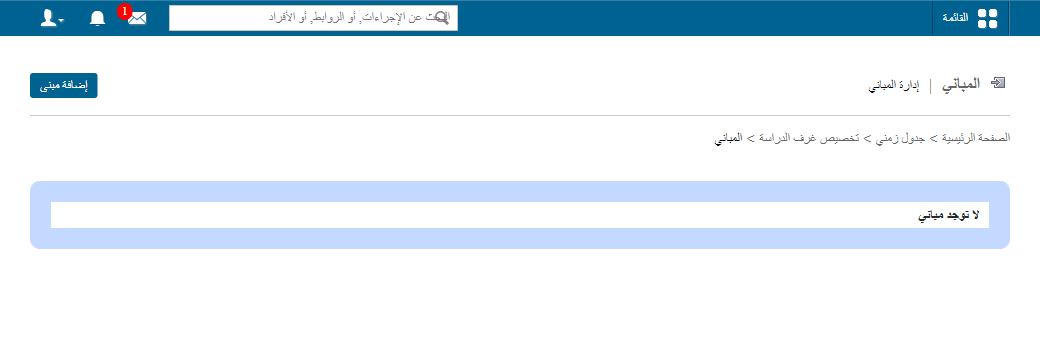
Edit or delete a building
- Edit: click Edit next to the building and save.
- Delete: click Delete.
Note: A building with rooms allocated to classes can’t be deleted.
Add rooms to a building
- Select the building.
- Click Add Rooms at the top.
Screenshot — to be added
public/images/articles/manage-buildings-rooms-2.png- Enter the room name and capacity.
- Click Save.
Edit or delete a room
- Select the building; its rooms are listed.
Screenshot — to be added
public/images/articles/manage-buildings-rooms-3.png- Click Edit to change and save, or Delete to remove.
Note: A room allocated to a class can’t be deleted.
Was this article helpful?
Thanks for your feedback!