
How to generate the attendance report for a batch
Monthly, custom-range or overall attendance for a batch, with percentage filters and export.
You can generate a batch’s Student Attendance Report for a month, a date range you choose, or the whole duration of the batch.
Note: A half-day absence (forenoon or afternoon) appears as 0.5 in the report.
Who can view it: administrators or employees with the Student Attendance View privilege.
Steps
- Click Menu → Academics → Attendance → Attendance Report.
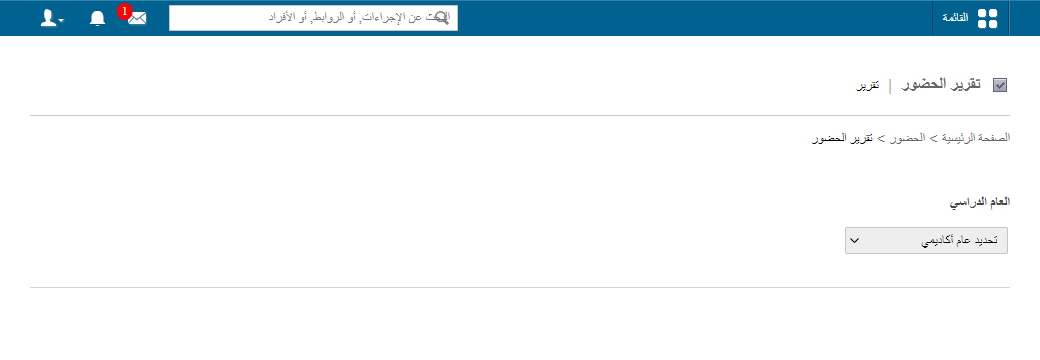
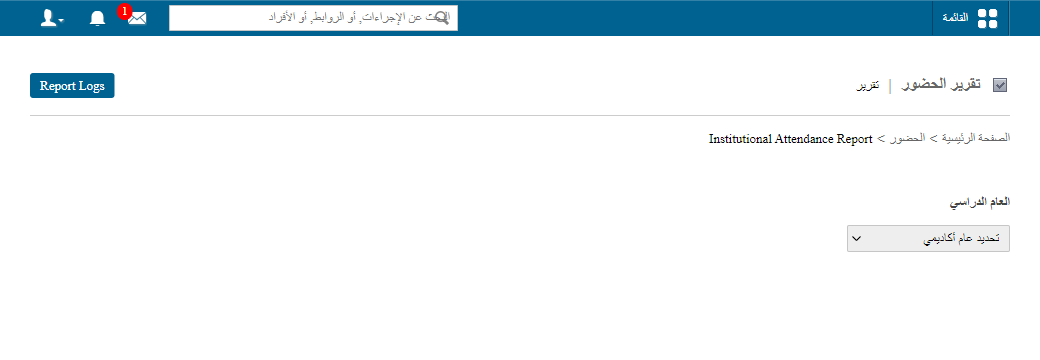
- Select the academic year the batch belongs to.
- Select the batch.
- Choose the report mode: Monthly, Custom or Overall.
- Export as PDF or CSV.
Report modes
| Mode | What it shows |
|---|---|
| Monthly | Choose month and year to see every student’s attendance that month, with total working days. |
| Custom | Attendance for a date range you choose. |
| Overall | Attendance for all students across the batch’s full duration. |
In the report you can
- See one student’s details: click their name.
- Filter by percentage: below, above, equals.
- PDF report: download a PDF.
- CSV report: export the data.
Was this article helpful?
Thanks for your feedback!