
How to generate the day-wise attendance report
See how many students were present and absent in each batch on a given day, then filter and export.
The Day-wise Attendance Report shows how many students were present in the institution and how many were absent in each batch on a given day.
Who can view it: administrators or employees with the Student Attendance View privilege.
Steps
Go to Menu → Academics → Attendance → Day-wise Attendance Report. By default it shows all batches for today.
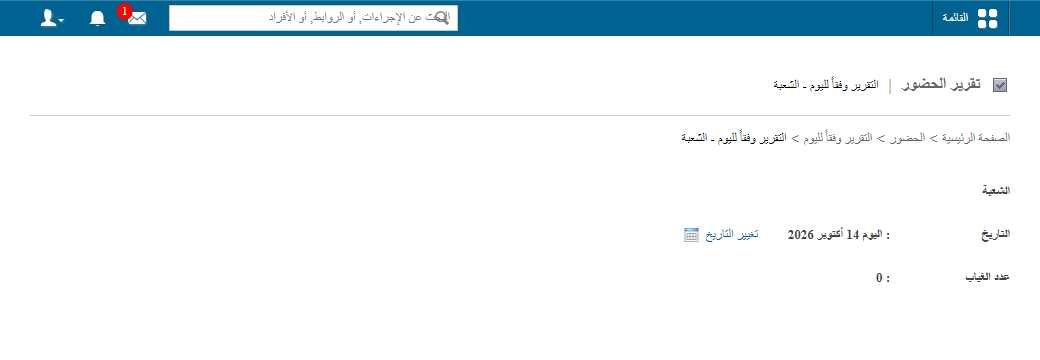
Options
| Option | Use |
|---|---|
| Date | Use the date picker at the top to see another day. |
| Attendance type | Filter by Absent or Late. |
| Batch | Choose a batch to see the names of absent students. |
| CSV export | Click CSV report to download absence data. |
Was this article helpful?
Thanks for your feedback!