
How to lock attendance after a set period
Turn on lock mode to freeze attendance automatically, and the difference between Save and Submit.
Turn on lock mode to freeze attendance after a set period. After that, only administrators or privileged users can edit or mark it.
Steps
- Go to Menu → Academics → Attendance → Attendance Settings.
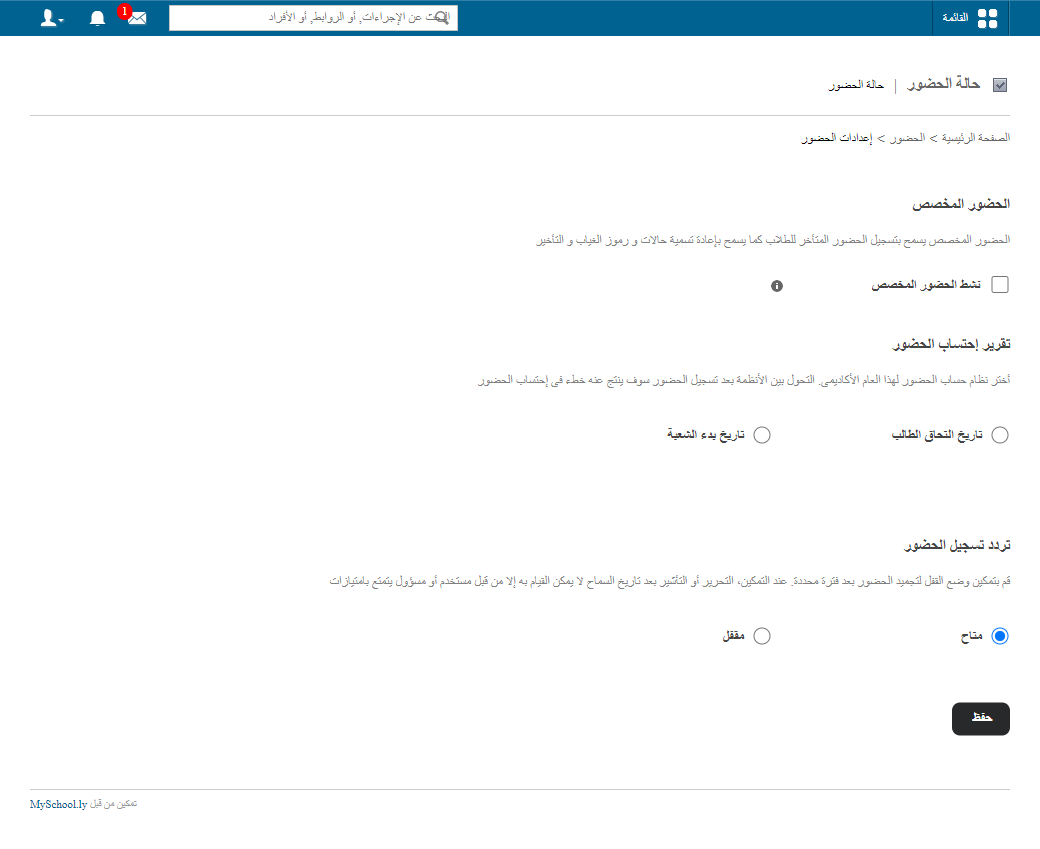
- In Attendance Mark Frequency, choose Lock and set the lock duration. Attendance locks automatically when it ends.
- Click Save.
Save and Submit
With lock mode on, the Attendance Register shows two buttons:
| Button | What happens |
|---|---|
| Save | Saves attendance; you can still edit it. |
| Submit | Submits attendance and locks it. |
Screenshot — to be added
public/images/articles/lock-attendance-2.pngLearn more: Marking attendance in lock mode and How to unlock attendance
Was this article helpful?
Thanks for your feedback!