
How to create a timetable
Create a timetable for a period, allocate subjects and teachers to periods, and handle clash warnings.
Before you start: create class timing sets, set weekdays, and link subjects to teachers.
Create the timetable
- Click Menu → Academics → Timetable → Manage Timetable. Active timetables are listed.
- Click Create timetable at the top.

- Enter the start date and end date, then click Create.
Allocate classes
- Click Timetable allocations next to the timetable. All courses and batches within its period are listed.
- Click a course to see its batches.
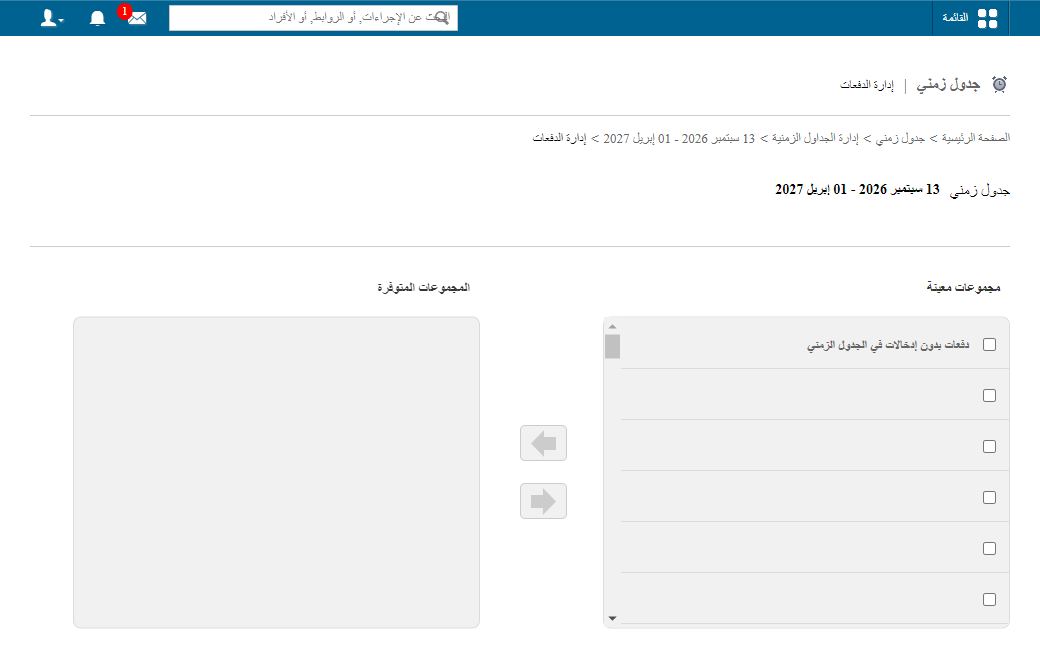
- Click Manage allocations next to the batch. The grid follows the batch’s weekdays and timing set; below it are the batch’s subjects with their max weekly classes — use this as a guide.
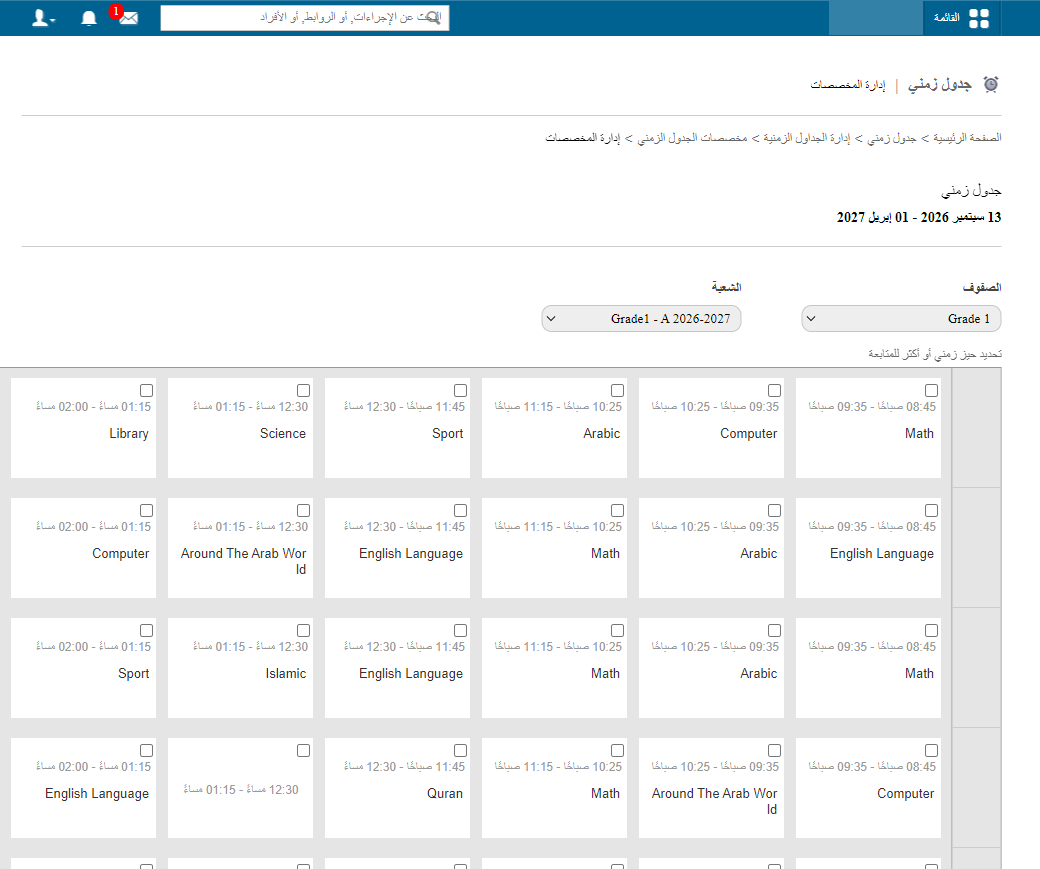
- Select one or more periods to allocate. Selected periods are highlighted yellow.
Screenshot — to be added
public/images/articles/create-timetable-4.png- Select the subject at the bottom; its teachers are listed.
- Select the teacher(s) (a green ✓ appears). A period can have more than one teacher.
- Click Assign, or drag and drop the teacher onto one selected period — all selected periods get the subject and teacher.
Screenshot — to be added
public/images/articles/create-timetable-5.pngEach period then shows the subject code and teacher’s name. To remove a subject from a period, click ×.
Screenshot — to be added
public/images/articles/create-timetable-6.pngOnce all weekdays are allocated, the same structure applies to every week of the timetable. Repeat for the other batches.
Warnings during allocation
Teacher already busy
If the teacher already has a class for another batch at the same time, a warning appears:
Screenshot — to be added
public/images/articles/create-timetable-7.png| Option | What happens |
|---|---|
| Assign and Remove | Assigns the teacher here and removes them from the earlier class. |
| Assign and Retain | Assigns here and keeps the earlier class; the teacher’s timetable shows a clash. |
| Cancel | Cancels the assignment. |
Limits reached
- If the subject has reached its max weekly classes, a warning appears.
- If the teacher has reached their max daily or weekly classes, a warning appears.
Screenshot — to be added
public/images/articles/create-timetable-8.pngIn both cases click Continue to assign anyway, or Cancel.
Was this article helpful?
Thanks for your feedback!