
How to edit or delete a timetable
Change a timetable's dates or periods, or delete it, and how this affects marked attendance.
Editing a timetable lets you:
- Change its date range.
- Change its entries.
Click Menu → Academics → Timetable → Manage Timetable.
1. Change the date range
Click Edit, change the dates, and click Update.
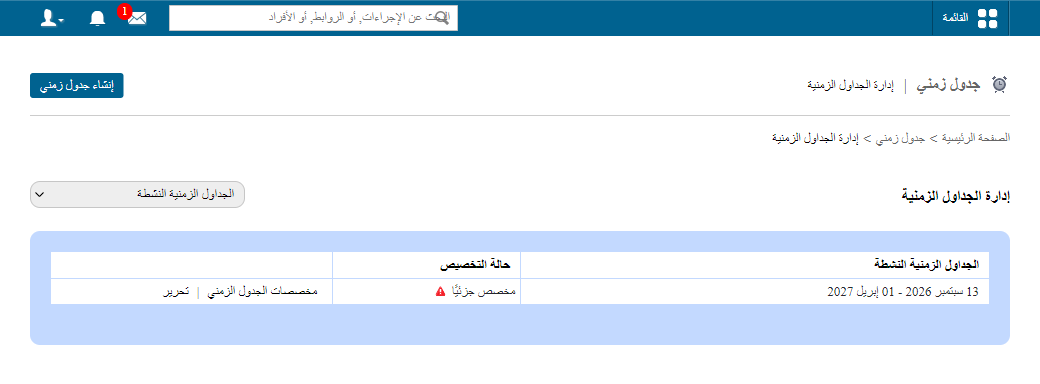
Shortening the range: if attendance has been marked, all attendance, swapped entries and class allocations for the removed dates are deleted.
Example: a timetable runs 1–30 January with attendance marked up to 20 January. Changing it to 1–15 January deletes attendance from 16 to 20 January.
Extending the range: the timetable splits into two with the same settings.
Example: a 1–20 January timetable extended to 30 January becomes two: 1–20 and 21–30 January.
2. Change entries
Warning: changing a subject entry that already has attendance deletes all its attendance, swapped entries and class allocations for the whole timetable period.
- Go to Timetable → Manage Timetable → Timetable Allocation.
- Click Manage Allocation next to the batch.
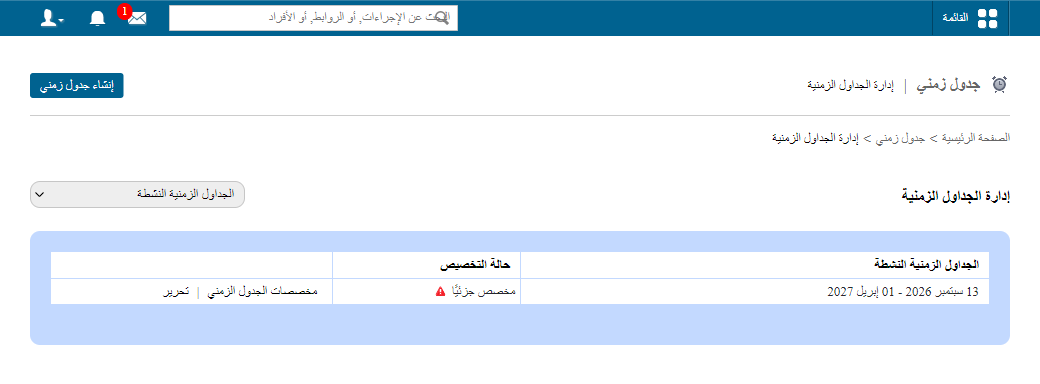
- Select the periods, choose the subject at the bottom and make your changes. Changes save automatically.
Delete a timetable
A timetable can be deleted any time. If attendance has been marked, all attendance, swapped entries and class allocations are deleted too.
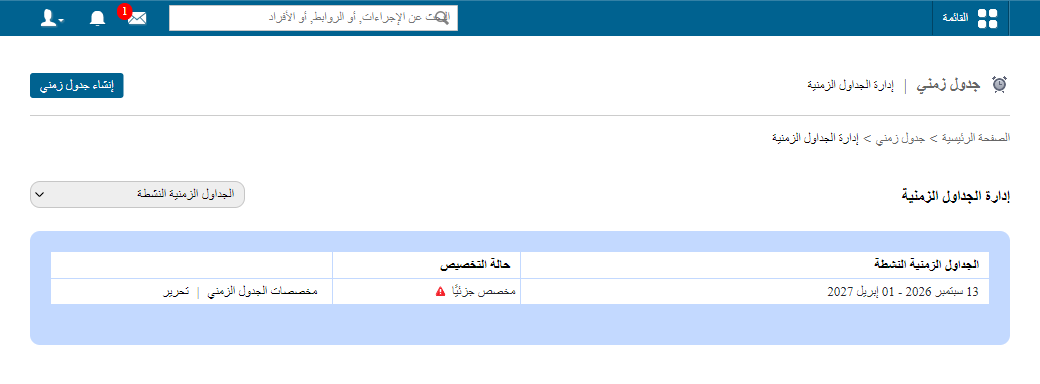
- Click Menu → Academics → Timetable → Manage Timetable → Edit.
- Click Delete.
Was this article helpful?
Thanks for your feedback!