
How to assign or unassign a batch to an existing timetable
Add batches to an existing timetable or remove them, and the conditions for each.
| Action | Condition |
|---|---|
| Assign a batch | The batch must have weekdays and class timing sets. |
| Unassign a batch | No entries can exist for that batch in the timetable. |
Steps
Click Menu → Academics → Timetable → Manage Timetable.
- Click Edit next to the timetable.
- Click Manage batch at the top.
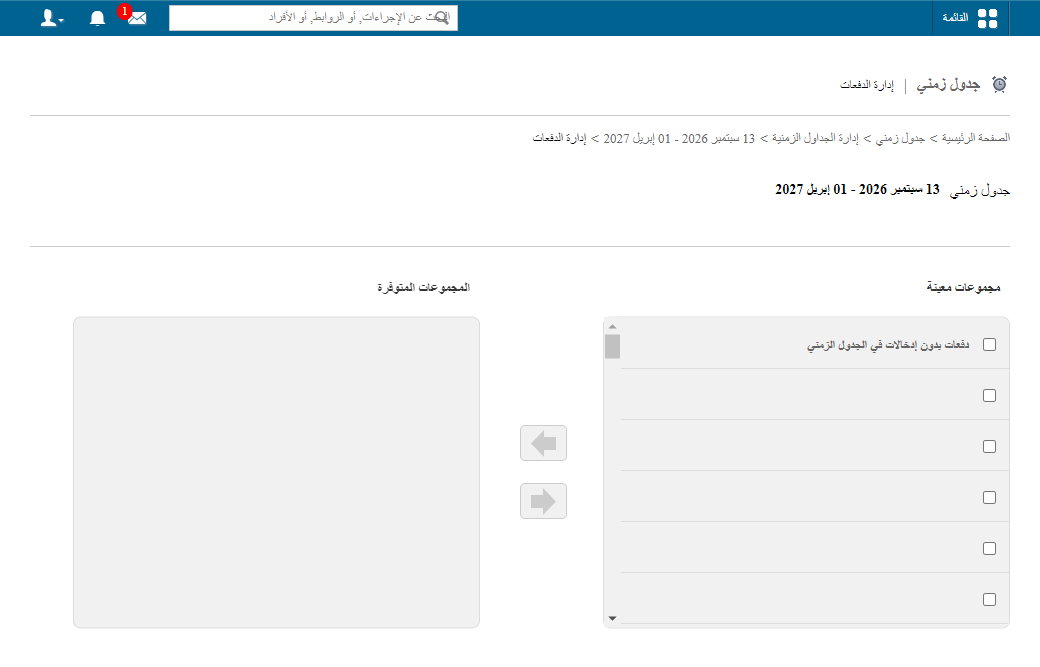
- Linked batches appear under Assigned Batches; others under Available Batches.
- To assign: select batches and use the arrow to move them from Available to Assigned.
- To unassign: select batches and move them from Assigned to Available.
Was this article helpful?
Thanks for your feedback!