
Additional fields for donor information
Add custom fields to record donor details, and deactivate or delete them.
Add a field
- Click Menu → Administration → Finance → Donations.
- Click Additional Fields at the top.
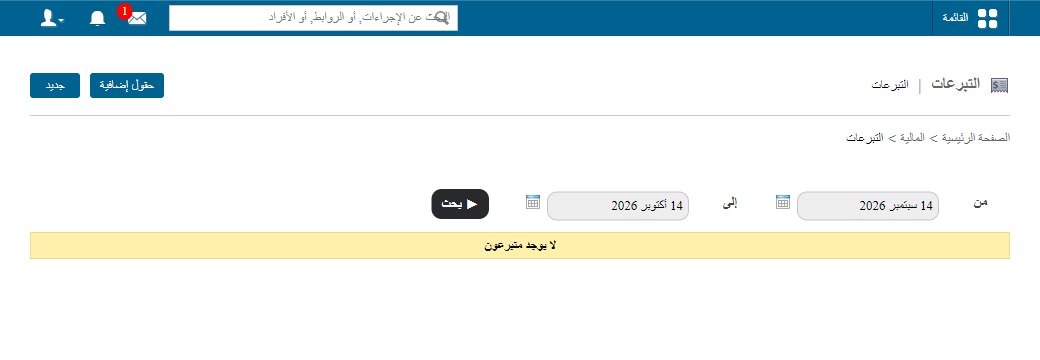
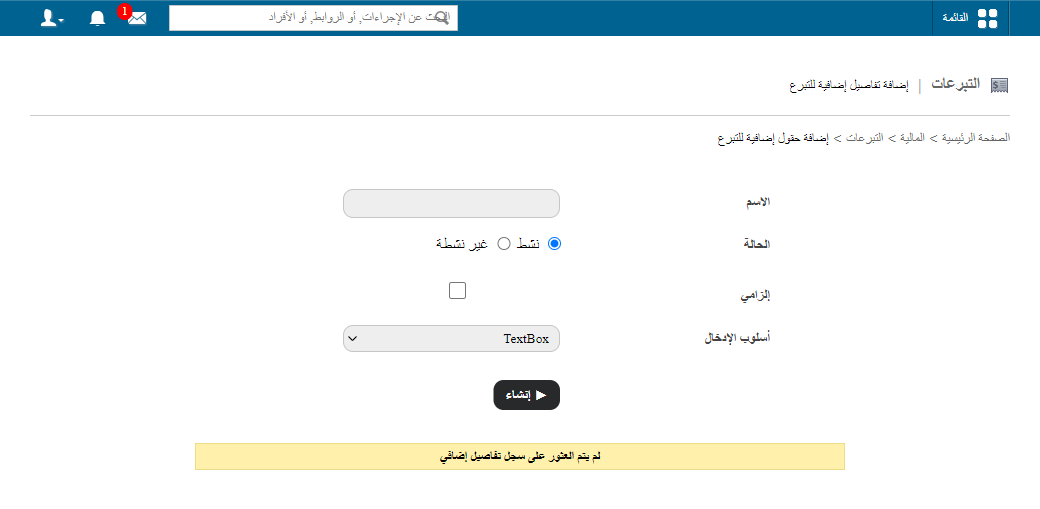
- Enter the field name.
- Choose its status:
- Active: shown when entering donor details.
- Inactive: hidden.
- Tick Is mandatory if it must be filled when adding a donor.
- Choose the input method:
- Text box: short text.
- Text area: detailed text.
- Select box: one option from a dropdown.
- Check box: one or more options.
- Click Create. Custom fields appear at the bottom of the donor form.
- Use the arrows to set the field order.
Deactivate or delete a field
Note: A field already used to record donor details can’t be deleted — deactivate it instead.
- On Donations, click Additional Fields.
- Deactivate: click Edit, choose Inactive, then Update. It moves to Inactive fields.
Screenshot — to be added
public/images/articles/donor-additional-fields-3.png- Delete: click Delete next to the field.
Was this article helpful?
Thanks for your feedback!