
Managing employee positions
Create positions for each employee category, and edit, deactivate or delete them.
Career paths differ between staff categories — teaching staff may progress from Teacher to Senior Teacher to Supervisor, and administrative staff from Clerk to Accountant. Create as many positions as your institution needs.
Create a position
- Click Menu → Administration → Human Resource → Settings → Add Employee Position.
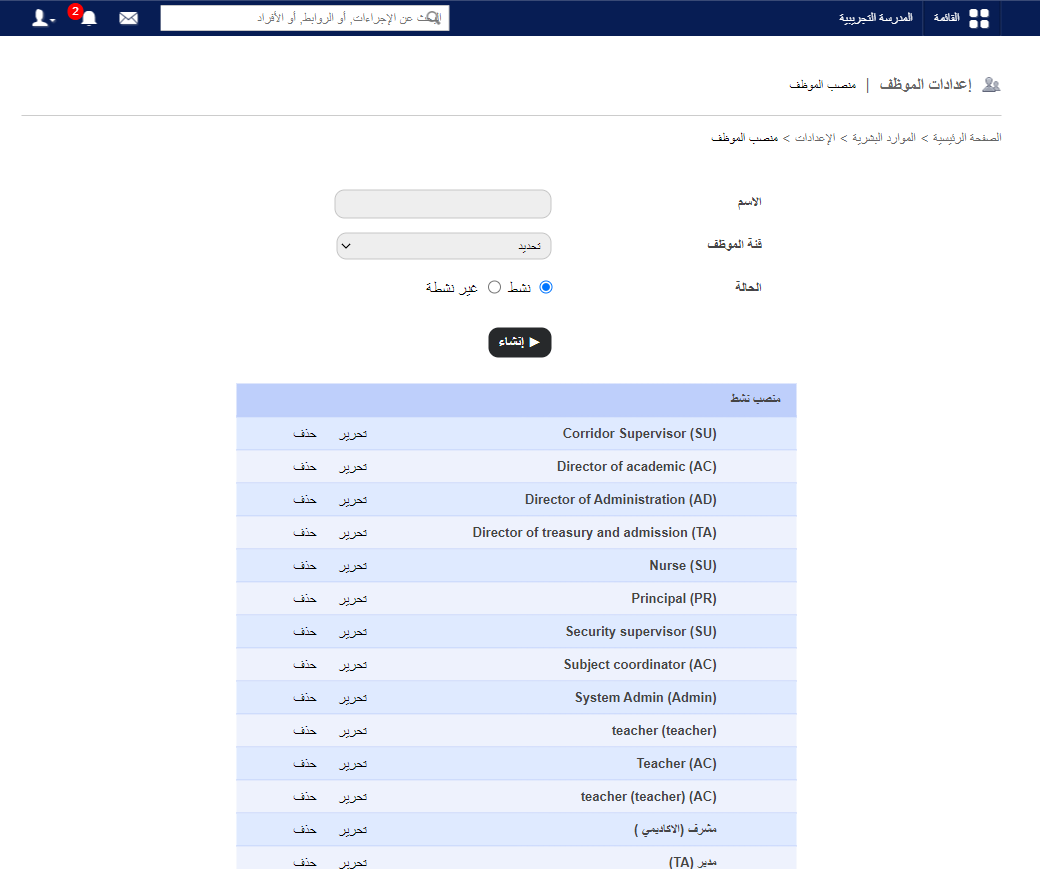
- Enter the name.
- Select the employee category it applies to.
- Choose the status: Active (shown on the admission form) or Inactive.
- Click Create.
Edit, deactivate or delete
Note: A position assigned to an employee can’t be deactivated or deleted.
- Click Edit, choose Inactive to deactivate, and click Update. It moves to Inactive Position.
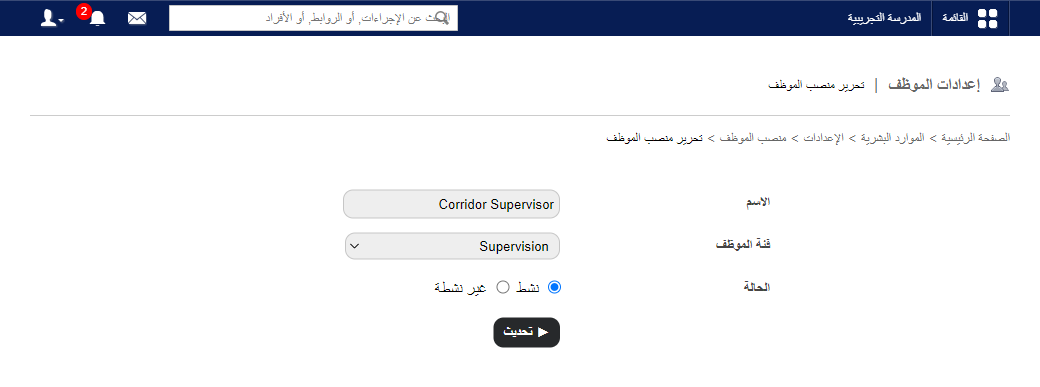
- Click Delete to remove a position.
Was this article helpful?
Thanks for your feedback!