
How to issue a book to a student or employee
Issue an available or reserved library book to a student or employee and set the issue and due dates.
Only books with the status Available or Reserved can be issued.
Steps
-
Go to Menu → Academics → Library → Issue Books to open the Issue Book page.
-
In the Book Number/Barcode field, enter the book number or scan the barcode, then click Search. If the book is not found, it is either borrowed by someone else or not available.
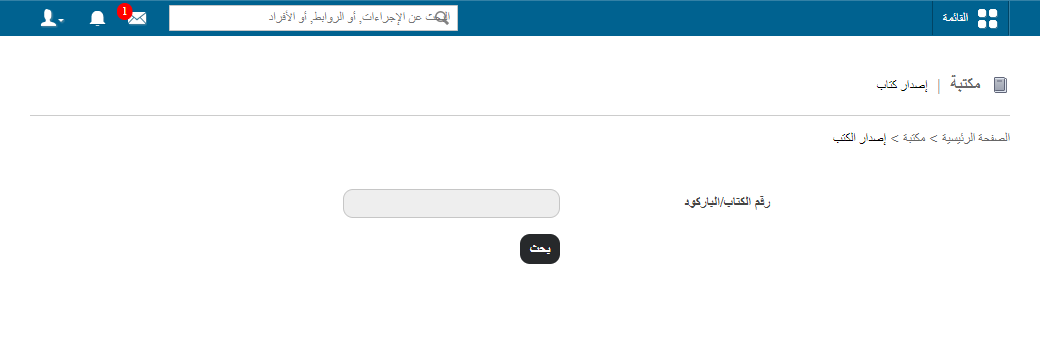
1Searching for a book to issue -
Click the book’s title.
-
On the right, search for the student or employee who will borrow the book:
- Student: select Student, enter the student’s first, middle or last name (or admission number), then click Search.
- Employee: select Employee, enter the employee’s first, middle or last name (or employee ID), then click Search.
-
Click the student’s or employee’s name. Their details appear on the left, together with any books they have already borrowed.
Note: If the student’s category has a borrowing limit and the student has reached it, a warning is displayed. You can still issue the book.
Screenshot — to be addedpublic/images/articles/library-issue-book-2.png2Borrower details panel -
Select the issue date and due date.
-
Click Issue.
public/images/articles/library-issue-book-3.pngRelated articles
Was this article helpful?
Thanks for your feedback!