
What is the use of the View all option in Manage Users?
Use View all in Manage Users to list users by role — admins, employees by department, students or parents by batch.
The View all option helps administrators, and employees with the Manage Users privilege, find users by their role.
-
At the top of your dashboard, click the module access icon and go to Menu → Administration → User to open the Manage Users page.
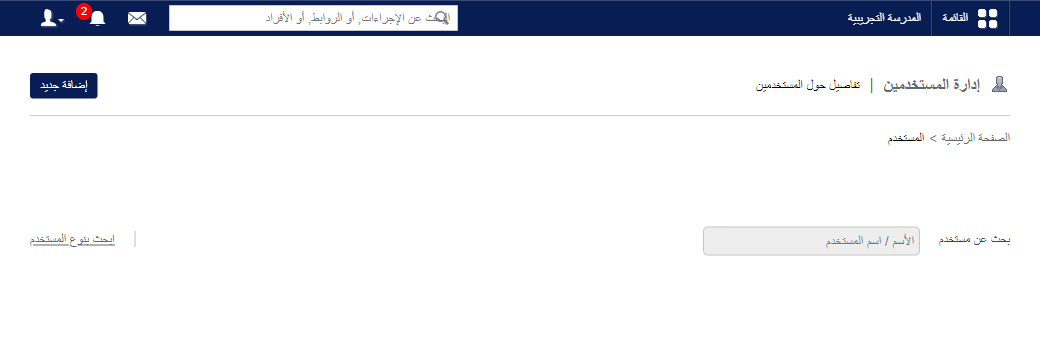
1Manage Users page with the View all button in the top right -
In the top right, click View all to open the All Users page.
-
Select the role you are looking for:
Screenshot — to be addedpublic/images/articles/user-view-all-2.png2Role selection list - Admin – shows all administrators.
- Employee – shows all employees in the selected department.
- Student – shows all students in the selected batch.
- Parent – shows the parents of all students in the selected batch.
-
Click the name of the user whose profile you want to see.
Screenshot — to be added
public/images/articles/user-view-all-3.pngWas this article helpful?
Thanks for your feedback!