
How to create a new batch
Create a batch (section, semester or intake) under a course, set its dates, and import fees and subjects.
The Administrator or an employee with the Manage Course/Batch privilege can create several batches under one course. A batch can be a section, semester, intake, academic year or group of students, depending on your structure.
Steps
- Go to Menu → Administration → Settings → Manage Course/Batch → Manage Course.
- Select the course, e.g. Grade 10 or Computer Science Engineering.
- Click New at the top of the page.
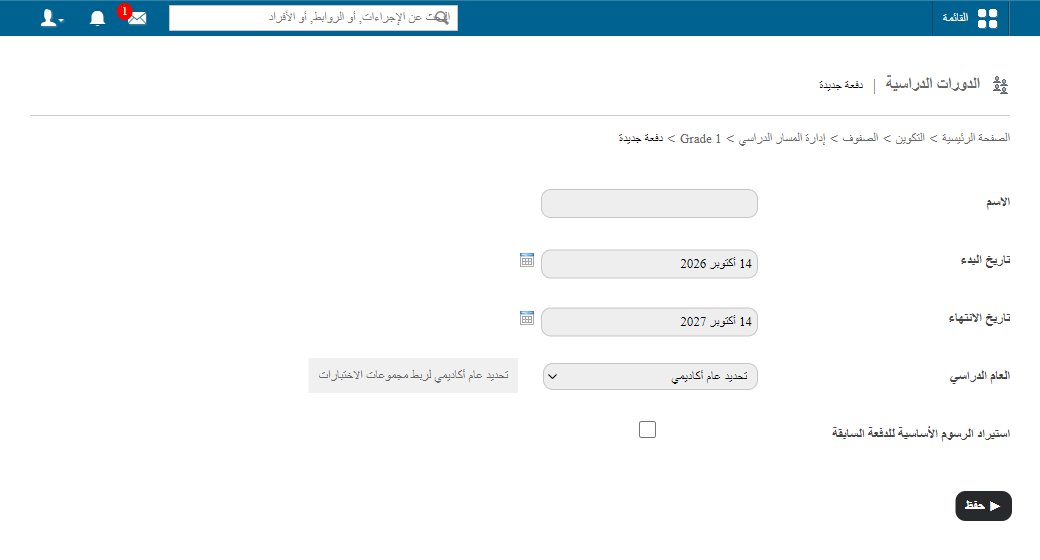
- Enter the batch name, e.g. A 2026, B 2026, Semester 1, June 2026 Intake.
Note: The system adds the course code before the batch name automatically.
- Set the start date and end date — the period the batch is active.
- (Optional) If the new batch uses the same fee structure as a previous one, select Import Previous Batch Master Fees to copy fee categories, particulars and structure.
- Click Save.
Import subjects
Importing subjects during batch creation is no longer available. To import them:
- Go to Menu → Academics → Subject Center → Course Subjects → Import Subjects.
- Select the batches to copy subjects from.
- Click Import Subjects.
See also: How to add subjects in the Subject Center.
Example workflow
Grade 10 → New batch “A 2026” → Import fees (optional) → Import subjects from Subject Center → Save
The batch is now ready for admissions and academic activities.
Was this article helpful?
Thanks for your feedback!