
How to view the users assigned to a vehicle
Use the View Details report to see seats, available seats and the students and employees assigned to each vehicle.
The View Details report shows, for each vehicle, the total number of seats, the number of seats available, and the names of the students and employees assigned to it.
Steps
-
Go to Menu → Administration → Transport → Report to open the View Details report.
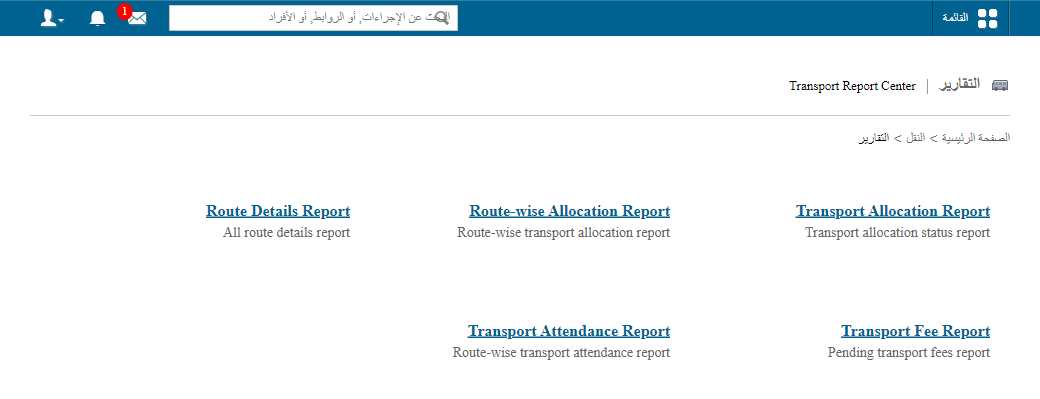
1Navigating to the transport report -
Click any item in the table to see more details. For example, click a vehicle number to see all students and employees assigned to that vehicle.
-
Click Export as CSV to download the information as a CSV file.
Screenshot — to be addedpublic/images/articles/transport-vehicle-assigned-users-2.png2The Export as CSV button
Screenshot — to be added
public/images/articles/transport-vehicle-assigned-users-3.pngWas this article helpful?
Thanks for your feedback!