
How to add custom fields to record vehicle additional details
Create custom vehicle fields, such as insurance expiry date, set them as mandatory, and arrange their order.
In addition to the default fields, you can create custom fields to record extra vehicle information, such as the insurance expiry date or vehicle model.
Go to Menu → Administration → Transport → Settings → Vehicle additional details.
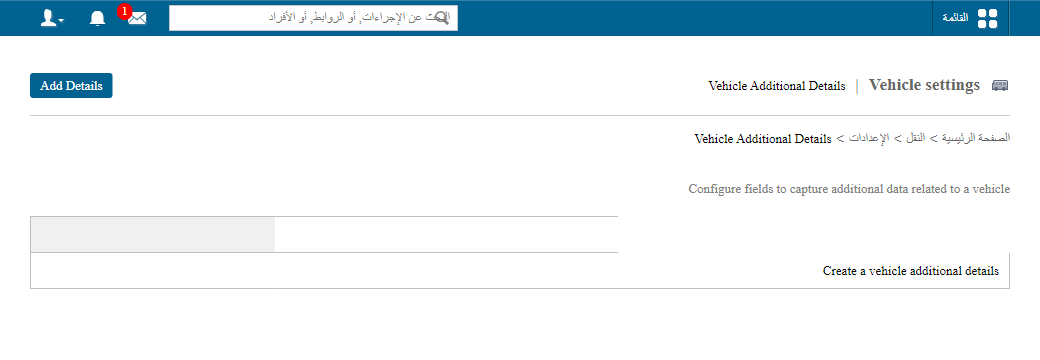
Steps
-
In Name, enter a descriptive name for the custom field.
-
Set the status:
- Active – the field appears when entering vehicle details.
- Inactive – the field is hidden. You can inactivate a field at any time.
-
Select Is mandatory if the field must be filled in when adding a vehicle.
-
In Input method, choose one of the following:
- Text Box – for short text.
- Select Box – to pick one option from a drop-down list.
- Check Box – to select multiple options.
-
Click Create.
-
Use the arrow icons to arrange the order in which fields appear when entering vehicle details.
Screenshot — to be addedpublic/images/articles/transport-vehicle-custom-fields-2.png2Arranging the order of vehicle fields
The custom fields now appear when you enter vehicle details.
Screenshot — to be added
public/images/articles/transport-vehicle-custom-fields-3.pngWas this article helpful?
Thanks for your feedback!