
Basic steps for creating a fee structure
A short six-step guide to creating a new fee structure, from settings to collecting fees.
The Finance module lets staff create and manage the institution’s fee structure. Follow these steps when creating a new one.
Step 1: Complete the finance settings
Home → Finance → Finance Settings
| Setting | Purpose |
|---|---|
| General settings | Fee management options. |
| Printer settings | Printer type and paper size. |
| PDF settings | Signature and footer on receipts. |
| Receipt sets | Receipt number sequences. |
| Receipt templates | Receipt header and footer. |
| Fee accounts | Split fees across accounts. |
| Financial years | Manage transactions per financial year. |
See Configure the finance settings.
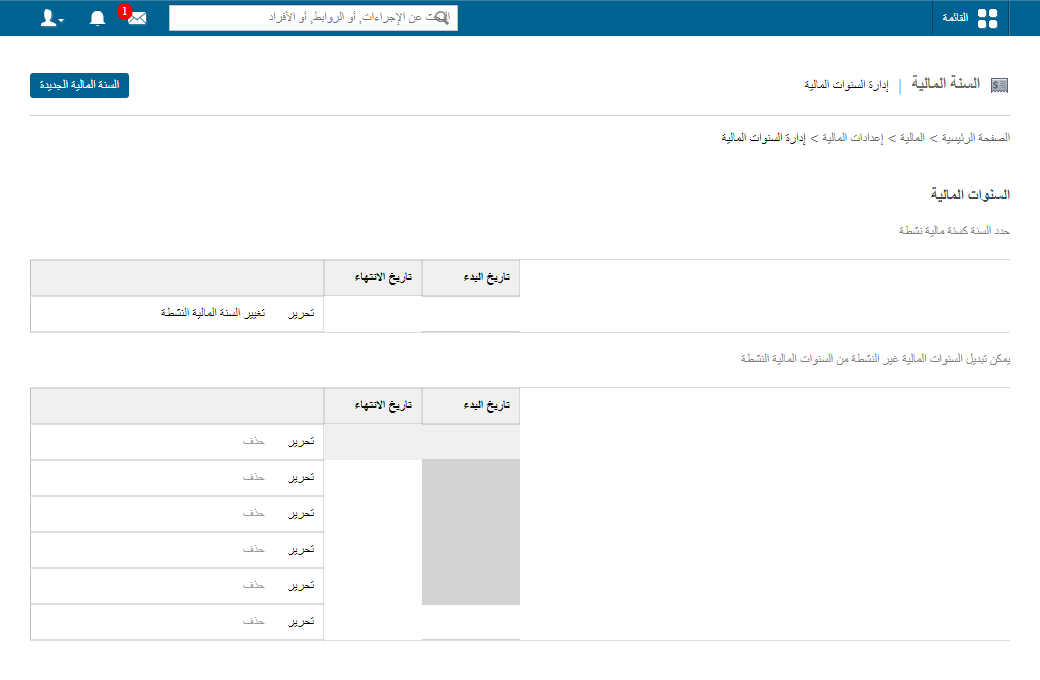
Step 2: Set the active financial year
Home → Finance → Finance Settings → Manage Financial Years → Change Active Financial Year
Step 3: Create master particulars and discounts
Home → Finance → Fees → Master Fees
These are used in the fee structure and enable particular-wise reports — e.g. a Tuition fee particular tells you how much tuition was collected in a period.
Step 4: Create the fee structure
Make sure you’re in the right financial year (its name shows at the top).
Menu → Administration → Finance → Fees → Create Fees
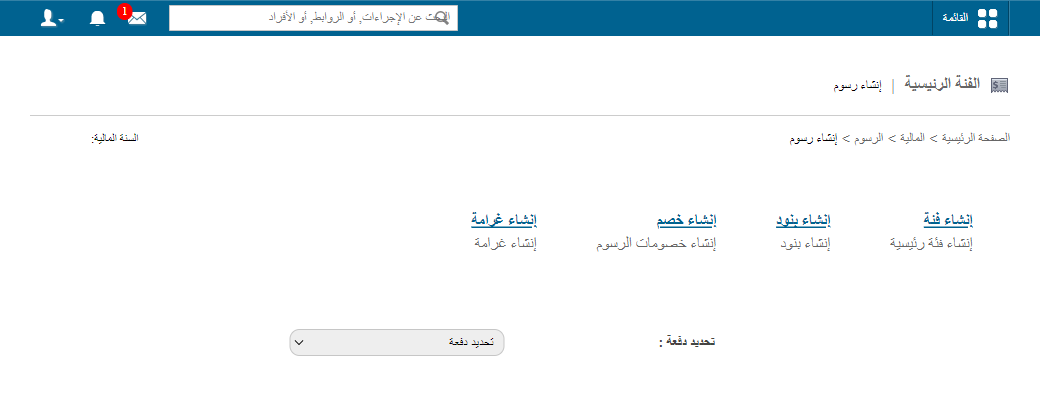
- Create fee categories.
- Create particulars inside them.
- Create batch, student-category or student discounts if needed.
- Create fines.
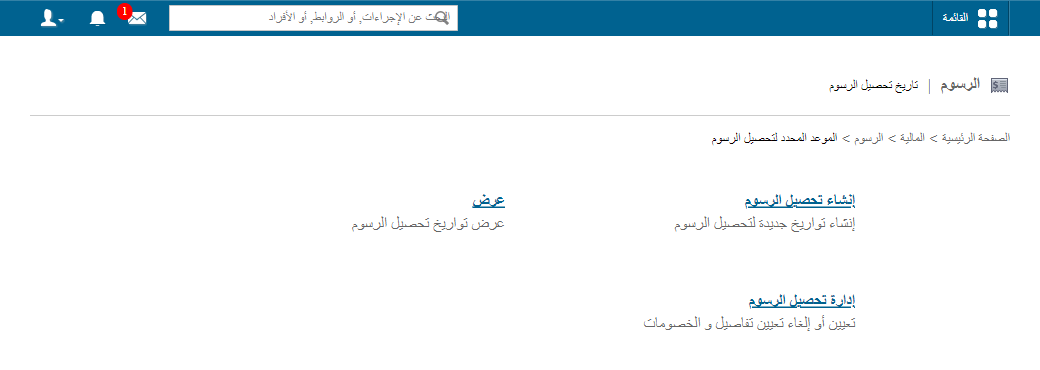
Step 5: Schedule collection dates
Home → Finance → Fees → Schedule Fee Collection Dates → Create Fee Collection
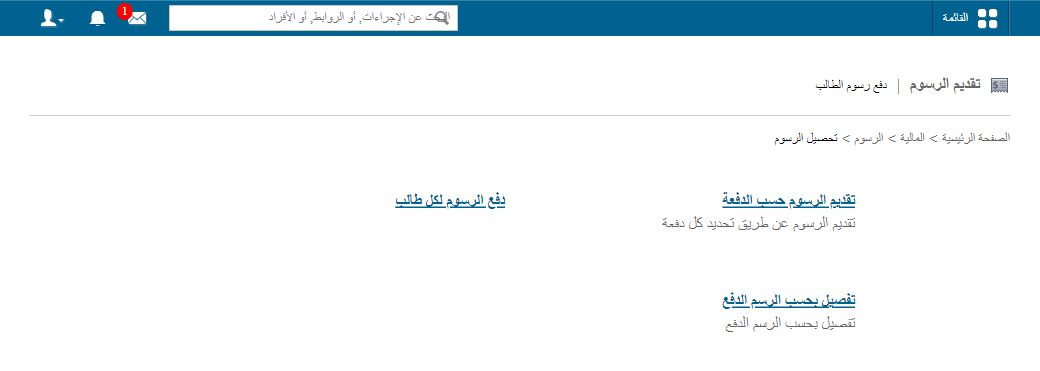
Step 6: Start collecting
Home → Finance → Fees → Collect the Fees → Fee Submission for each student
Tip: The Online Payment module connects a payment gateway to the fee structure so fees can be paid online.
Was this article helpful?
Thanks for your feedback!