
How to create a payroll group
Group employees with the same salary structure, set payment frequency, payslip date and loss-of-pay calculation.
Payroll is handled through payroll groups; each group defines an employee’s salary structure from the categories added to it. One schedule may not fit everyone, so create groups for employees sharing a salary structure, payment frequency and loss-of-pay (LOP) method. Each group is processed separately.
Steps
- Click Menu → Administration → Human Resource → Payroll and Payslip Management.
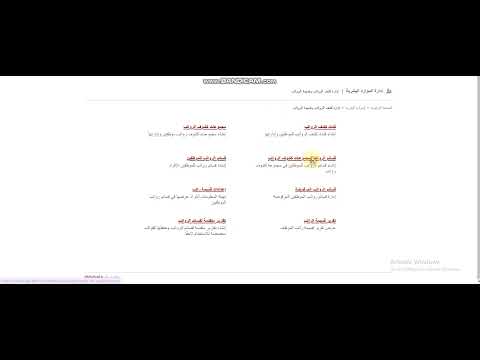
- Click Payroll Groups.
Screenshot — to be added
public/images/articles/payroll-group-2.png- Click Create payroll group at the top.
Screenshot — to be added
public/images/articles/payroll-group-3.png- Enter:
- Group name.
- Payment frequency:
| Frequency | Meaning |
|---|---|
| Daily | Pay every day. |
| Weekly | Pay weekly on a set day (e.g. every Thursday). |
| Bi-weekly | Pay every two weeks on a set day. |
| Semi-monthly | Pay twice a month on set dates (e.g. 15th and month end). |
| Monthly | Pay monthly on a set date (e.g. month end). |
- Payslip generation date.
- In Add Payroll Categories, click Add for each category; they move to Selected Payroll Categories.
Note: Adding a category also adds the categories it depends on; removing one removes its dependants.
- Choose whether LOP deduction is enabled. If so, choose the method: Numeric, Formula or Conditions with formula.
- Click Create payroll group.
Screenshot — to be added
public/images/articles/payroll-group-4.pngWas this article helpful?
Thanks for your feedback!